

If you searched for Google CRM free, you are probably not looking for a complicated enterprise system.
You are probably trying to answer one of these questions:
- Does Google have a free CRM?
- Can I use Google Sheets as a CRM?
- Can I manage leads with Gmail, Google Forms, and Google Contacts?
- Is there a free CRM that works well with Google Workspace?
- Do I really need to pay for HubSpot, Salesforce, Pipedrive, or another CRM yet?
And honestly, I understand that search so much.
When you are building a blog, service business, side hustle, small website, or online brand, every new tool feels like another bill. You hear successful people talk about funnels, CRMs, email sequences, lead tracking, automations, pipelines, and follow-ups as if it is all obvious. But when you are still trying to grow traffic, write content, understand SEO, test AI tools, and maybe make your first consistent income online, paying for a full CRM can feel too early.
This is the exact kind of thing I like exploring: simple tools, low-cost systems, and beginner-friendly ways to build the business foundation without pretending we are already running a huge company.
So let’s be honest from the start.
Google does not really offer a standalone product called “Google CRM” in the way HubSpot, Salesforce, Zoho, or Pipedrive offer CRM software. But you can build a very useful beginner CRM using Google tools like Google Sheets, Google Forms, Google Contacts, Gmail, Google Calendar, Google Drive, Looker Studio, and AppSheet.
For a small blogger, freelancer, affiliate marketer, creator, consultant, or service provider, that may be enough in the beginning.
But it also has limits.
This guide will help you decide whether a free Google CRM setup is enough for you, how to build one, what to include, and when it is time to move to a real CRM.
Quick Answer: Is There a Free Google CRM?
There is no official standalone “Google CRM” product that works like a full CRM platform. But you can create a free or low-cost CRM system using Google tools.
The simplest version is:
| Google tool | How it helps your CRM |
|---|---|
| Google Sheets | Stores leads, contacts, deals, follow-ups, and notes |
| Google Forms | Collects new leads or inquiries into a spreadsheet |
| Google Contacts | Keeps basic contact details organized |
| Gmail | Handles communication and follow-up emails |
| Google Calendar | Tracks calls, demos, deadlines, and follow-up reminders |
| Google Drive | Stores client files, proposals, lead magnets, and documents |
| Looker Studio | Turns CRM data into simple reports and dashboards |
| AppSheet | Turns your spreadsheet into a simple no-code CRM app |
If you are just starting, the best free setup is usually:
Google Form → Google Sheet CRM → Gmail follow-up → Calendar reminder.
That is not fancy. But it can be enough to stop losing leads in your inbox.
Who Should Use a Free Google CRM Setup?
A free Google CRM setup is best for people who need organization more than advanced automation.
It can work well if you are:
- A blogger collecting brand inquiries
- A beginner freelancer tracking potential clients
- A service provider managing discovery calls
- A creator tracking sponsorship leads
- An affiliate marketer tracking partner relationships
- A coach or consultant tracking inquiries
- A small business owner not ready for paid CRM software
- A content creator testing lead magnets or contact forms
For example, if you write content about how to monetize your blog from day one, you may eventually need to track affiliate partners, sponsorship requests, product ideas, email subscribers, and potential clients. A simple CRM can help you see those opportunities in one place.
If you are using content to generate leads, you may also want to connect this with your strategy around free lead generation websites, lead magnet ideas, or email marketing strategy.
Because a CRM is not only for “salespeople.” It is for anyone who does not want good opportunities to disappear into random emails, sticky notes, or forgotten browser tabs.
Who Should Not Use Google Sheets as a CRM?
I love low-cost tools, but I do not want to oversell Google Sheets as if it is a magic CRM.
A Google Sheets CRM is not ideal if you:
- Have a large sales team
- Need advanced permission controls
- Need detailed email tracking
- Need automatic call logging
- Need complex sales automation
- Need built-in deal forecasting
- Need customer support ticketing
- Need strong reporting across many users
- Need secure, regulated customer data workflows
If your business is already handling many customers, sales reps, support requests, and follow-up stages, a spreadsheet will probably become messy.
But if you are still small, a Google CRM setup can help you learn what you actually need before you start paying for bigger software.
The Best Free Google CRM Setup for Beginners
If I were building a free CRM with Google tools today, I would keep it simple.
I would not start with a complicated spreadsheet full of 40 columns, formulas I do not understand, and tabs I never use.
I would create a CRM with five main parts:
- Contacts — who the person is
- Lead source — where they came from
- Pipeline stage — where they are in the process
- Next follow-up — what I need to do next
- Notes — context I do not want to forget
That is enough to start.
Simple Google Sheets CRM columns
Open Google Sheets and create a new spreadsheet. Google Sheets lets you create online spreadsheets and collaborate in real time from any device, which is why it works well as a basic shared CRM. You can explore the official Google Sheets product page if you want to see Google’s current feature overview.
Then create these columns:
| Column | What to write there |
|---|---|
| Contact Name | The person’s name |
| Their email address | |
| Company / Website | Their business, brand, or website |
| Lead Source | Google, Pinterest, referral, contact form, email, LinkedIn, etc. |
| Interest | Service, sponsorship, affiliate, collaboration, product, support, etc. |
| Pipeline Stage | New, Contacted, Replied, Call Booked, Proposal Sent, Won, Lost |
| Value | Estimated deal value if relevant |
| Last Contact Date | When you last emailed or spoke |
| Next Follow-Up Date | When you should follow up |
| Priority | High, Medium, Low |
| Notes | Important details, context, or next action |
This is not complicated, but it can change everything if you are used to forgetting follow-ups.
How to Build a Free Google CRM Step by Step

Step 1: Create your CRM spreadsheet
Start with one Google Sheet.
Name it something clear like:
Website Leads CRM
or:
Blog Business CRM
Then create tabs like:
- Contacts
- Deals / Opportunities
- Follow-Ups
- Resources / Links
- Dashboard
If you are brand new, do not overcomplicate it. One tab may be enough.
My personal rule: if a tab does not help me take action, I do not need it yet.
Step 2: Add dropdowns for pipeline stages
Dropdowns make your CRM easier to use.
Create pipeline stages like:
- New Lead
- Contacted
- Interested
- Call Booked
- Proposal Sent
- Won
- Lost
- Follow Up Later
This lets you filter your spreadsheet quickly instead of reading every note again and again.
If you are a blogger, your stages may be different:
- New Brand Inquiry
- Media Kit Sent
- Negotiating
- Content Scheduled
- Invoice Sent
- Paid
That is the beautiful part of a DIY Google CRM. You can shape it around your real business.
Step 3: Use Google Forms to collect leads
Google Forms can send new form responses into a spreadsheet, which makes it a simple lead capture tool. Google describes Forms as an online form builder that lets you create forms and surveys with a drag-and-drop interface. You can review the official Google Forms product page.
You can create a form for:
- Contact requests
- Brand collaborations
- Service inquiries
- Newsletter interest
- Affiliate partnership requests
- Guest post requests
- Client intake forms
A simple inquiry form could ask:
- Name
- Website
- What do you need help with?
- Budget range
- Timeline
- How did you find me?
This is especially useful if your website has content around services, tools, or lead generation. If you are building a system around visitors becoming leads, your articles on WordPress landing page builders, free AI landing page generators, and lead magnet generators can naturally support this path.
Step 4: Use Google Contacts for basic relationship organization
Google Contacts can help you store and organize contact details. Google’s Contacts Help includes topics for adding contacts, merging duplicate contacts, importing contacts, exporting contacts, and grouping contacts with labels. You can explore Google Contacts Help.
For a simple CRM, you can use Google Contacts for people you communicate with often, while Google Sheets tracks the business process.
For example:
- Google Contacts = person details
- Google Sheets = pipeline, notes, follow-ups, and deal stage
You can also use labels in Google Contacts, such as:
- Brand Partners
- Clients
- Affiliate Managers
- Newsletter Leads
- Potential Collaborators
Keep it simple. The goal is not to create a beautiful labeling system that you never maintain. The goal is to find people when you need them.
Step 5: Use Gmail for communication
Most beginner “Google CRM” systems still depend on Gmail because that is where conversations happen.
You can use Gmail for:
- Follow-up emails
- Brand collaboration replies
- Client communication
- Affiliate manager conversations
- Proposal delivery
- Invoice follow-ups
But Gmail alone is not a CRM.
That is where people get lost.
Your inbox shows conversations, but it does not clearly show pipeline stages, lead value, follow-up dates, or deal history in one clean dashboard.
So use Gmail for the conversation, and use your Google Sheet CRM for tracking the relationship.
Step 6: Use Google Calendar for follow-up reminders
A CRM is useless if it does not help you follow up.
If you add a “Next Follow-Up Date” column in Google Sheets, you can also create Calendar reminders for important leads.
For example:
- Follow up with brand partner on Friday
- Send proposal after discovery call
- Check if affiliate link was approved
- Remind client about missing materials
- Send second follow-up after no reply
This is one of the simplest but most powerful parts of a free CRM system.
Because a lot of money is not lost because people said no. It is lost because we forgot to follow up.
Step 7: Use Google Drive for files and proposals
If your CRM tracks clients, brands, or partners, your files should be organized too.
Create folders like:
- Brand Deals
- Client Proposals
- Affiliate Partnerships
- Media Kit
- Invoices
- Contracts
Then add the Drive link inside your Google Sheet CRM.
For example, if a lead has a proposal, add a column called:
Proposal Link
That way, your CRM is not only a list of names. It becomes the control center for the relationship.
Step 8: Use Looker Studio for a simple CRM dashboard
If you want a more visual dashboard, you can connect CRM data from Google Sheets into Looker Studio. Google’s documentation describes Data Studio / Looker Studio as a no-cost tool for creating customizable dashboards and reports. You can read the official documentation here: Data Studio documentation.
For a beginner CRM dashboard, you can track:
- Total leads
- Open opportunities
- Won deals
- Lost deals
- Estimated value
- Lead source
- Follow-ups due this week
You do not need a dashboard immediately. But it can be helpful once your CRM has enough data.
Step 9: Use AppSheet if you want a simple CRM app
If you want to turn your Google Sheet into a simple app, AppSheet is worth knowing. Google AppSheet is a no-code app platform, and Google says AppSheet is free for prototype development and testing, as well as personal use. You can read the official page on using AppSheet for free.
AppSheet can help you create a basic CRM app with:
- Lead forms
- Contact views
- Pipeline stages
- Follow-up lists
- Mobile access
- Simple automations
But be careful with the word “free.” AppSheet’s own pricing page shows paid Starter and Core plans, and Google also explains that AppSheet Core licenses are included at no cost with most Google Workspace editions for domain-verified users. You can compare AppSheet pricing and Google’s help article on managing AppSheet in Google Workspace.
So my advice is simple:
Use AppSheet free to test and prototype. If you want to deploy a CRM app for a team or business process, check the current licensing rules before building your whole system around it.
Google Sheets CRM Template: What Should It Include?
If you are making your own Google Sheets CRM template, keep it focused on action.
Here is a practical structure.
Tab 1: Contacts
| Field | Example |
|---|---|
| Name | Sarah Johnson |
| sarah@example.com | |
| Company | Bright Tools Co. |
| Role | Affiliate Manager |
| Relationship Type | Affiliate Partner |
| Notes | Interested in content collaboration |
Tab 2: Opportunities
| Field | Example |
|---|---|
| Opportunity | Sponsored AI tools roundup |
| Contact | Sarah Johnson |
| Stage | Proposal Sent |
| Value | $500 |
| Close Probability | 50% |
| Next Step | Follow up on Monday |
Tab 3: Follow-Ups
| Field | Example |
|---|---|
| Due Date | July 3 |
| Contact | Sarah Johnson |
| Action | Send proposal follow-up |
| Status | Pending |
Tab 4: Dashboard
This can include simple formulas for:
- Total leads
- Open deals
- Won deals
- Lost deals
- Total estimated value
- Follow-ups due today
You do not need this to be perfect. You need it to help you take action.
Free Google CRM Use Cases for Bloggers and Creators
1. Brand sponsorship CRM
If brands email you for sponsored content, keep them in your CRM.
Track:
- Brand name
- Contact person
- Campaign idea
- Budget
- Negotiation stage
- Content deadline
- Invoice status
This is useful if your site grows into ad income, sponsorships, or affiliate partnerships. You can connect this with content around best ad networks for bloggers and affiliate marketing tools.
2. Freelance client CRM
If you offer writing, SEO, Pinterest, web design, automation, or video services, your Google CRM can track clients from inquiry to payment.
Track:
- Client name
- Service needed
- Budget
- Call date
- Proposal link
- Payment status
- Project notes
If you create content around getting clients, this can support articles like how to get clients for video editing or affordable SEO services.
3. Affiliate partnership CRM
If you promote tools, your affiliate relationships should not live only in your inbox.
Track:
- Tool name
- Affiliate manager
- Commission rate
- Cookie duration
- Login link
- Best converting articles
- Payment terms
- Promotion notes
This is especially useful for a site that reviews tools, compares AI software, or writes about AI affiliate marketing.
4. Digital product customer CRM
If you sell templates, ebooks, courses, or mini-products, you can use your CRM to track buyers and support requests.
Track:
- Customer name
- Product purchased
- Purchase date
- Support issue
- Refund status
- Upsell opportunity
For digital product planning, you can link this system with digital product ideas for bloggers, most profitable digital products, or free online course builders.
5. Lead magnet follow-up CRM
If someone downloads a freebie, you may not want every subscriber inside a spreadsheet. Your email marketing software should manage your full list.
But you may want to track high-intent leads, such as:
- People who reply to your emails
- People who request a service
- People who join a waitlist
- People who ask about a product
- People who want collaboration
This keeps your CRM focused on relationships, not every casual subscriber.
Free Google CRM vs Free CRM Software
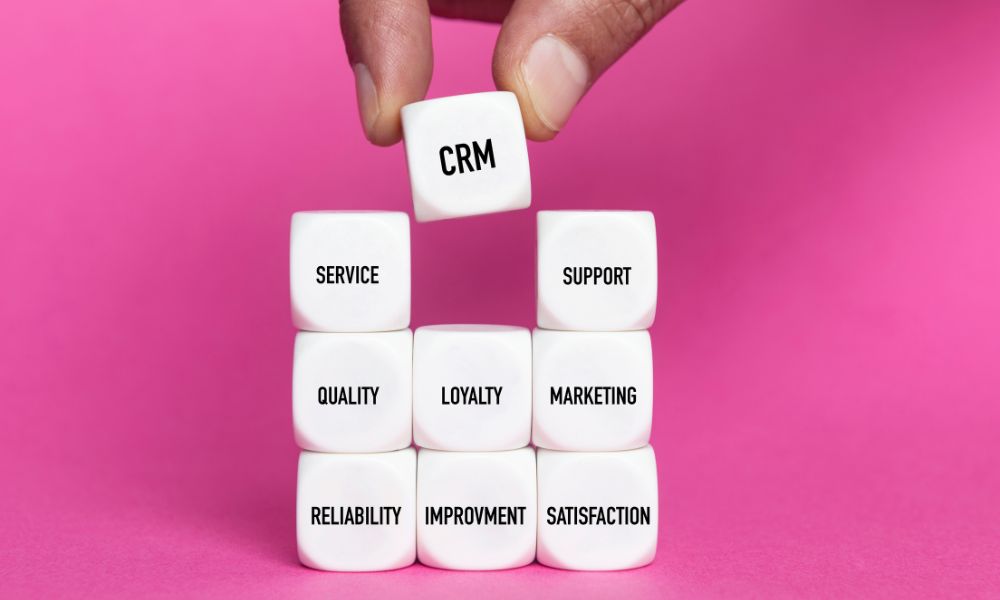
A DIY Google CRM is not your only free option.
For example, HubSpot says its free CRM tools include free access with no time limit and a 1,000-contact limit on free tools. You can check HubSpot’s official free CRM tools pricing page and free CRM product page.
So which is better?
| Option | Best for | Main limitation |
|---|---|---|
| Google Sheets CRM | Simple tracking, full control, no software learning curve | Manual, limited automation, can get messy |
| HubSpot Free CRM | Real CRM structure, contacts, deals, forms, pipelines | Some advanced features require paid upgrades |
| Gmail CRM tools | People who live inside Gmail | Pricing and features vary by tool |
| AppSheet CRM | People who want to turn a Sheet into a simple app | Licensing and deployment rules matter |
My honest take:
If you want to learn CRM basics and stay free, start with Google Sheets.
If you already have real leads coming in and want a proper system, compare HubSpot Free CRM or another free CRM.
If you work inside Gmail all day, look at Gmail-integrated CRM tools from the Google Workspace Marketplace. Google’s marketplace has a Sales & CRM category with apps that integrate with Google Workspace, including options like Streak, Copper, Capsule, and others. You can browse the official Google Workspace Marketplace Sales & CRM category.
For example, Streak is described on the Chrome Web Store as a CRM for Gmail that lets you manage sales and customer relationships directly inside Gmail. You can view the official Streak CRM for Gmail listing and check its Streak pricing page before deciding.
When Should You Upgrade From a Google Sheets CRM?
A free Google CRM setup is a starting point, not a forever answer for everyone.
You should consider upgrading when:
- You forget follow-ups even with your sheet
- You have more leads than you can manually manage
- You need automated email sequences linked to deals
- You need multiple team members using the system
- You need better reporting
- You need activity tracking across emails and calls
- You need forms, live chat, CRM, email, and automation together
- You are making enough money that the tool saves more than it costs
This is how I like to think about software:
Use free tools to prove the workflow. Pay when the workflow is valuable enough to protect.
That mindset keeps you from buying tools too early, but also keeps you from staying stuck in manual systems too long.
Common Mistakes With a Free Google CRM
Mistake 1: Turning the sheet into a monster
Do not create 80 columns because you saw a complicated CRM template.
Start with the fields you will actually use.
Mistake 2: Tracking everything but doing nothing
A CRM should help you follow up, make decisions, and build relationships.
If you only enter data and never act on it, it is just digital clutter.
Mistake 3: No clear pipeline stages
If every lead is just “maybe,” your CRM will not help.
Use clear stages like:
- New
- Contacted
- Replied
- Call Booked
- Proposal Sent
- Won
- Lost
Mistake 4: Forgetting follow-up dates
The “Next Follow-Up Date” column is one of the most important fields in the whole CRM.
Without it, your sheet becomes a contact list, not a relationship system.
Mistake 5: Using it for sensitive data without thinking
Be careful with what you store.
Do not put unnecessary private, financial, health, or sensitive details into a casual spreadsheet. Check sharing settings. Limit edit access. Keep business data clean and intentional.
This matters even more if you work with clients, customer data, payments, or regulated industries.
How a Google CRM Fits Into a Blog Business System
A CRM is not separate from your website. It should connect to your content and audience path.
For example:
| Website activity | CRM action |
|---|---|
| Visitor reads a service article | They fill out a Google Form inquiry |
| Brand finds your media kit | You add the brand to your sponsorship CRM |
| Affiliate manager contacts you | You track program terms and follow-up date |
| Reader joins a waitlist | You track high-intent leads for launch follow-up |
| Client books a call | You track proposal stage and next action |
This connects naturally with your broader system around marketing automation software, types of email marketing campaigns, and social media management platforms.
The idea is simple:
Traffic brings people. Content helps them. Forms capture interest. CRM tracks the relationship. Email and follow-up build trust.
My Simple Free Google CRM Workflow
If I were starting from zero, this is the workflow I would build:
- Create a Google Sheet called “Website Leads CRM.”
- Add columns for name, email, source, interest, stage, last contact, next follow-up, and notes.
- Create a Google Form for inquiries.
- Connect form responses to the Sheet.
- Use Gmail for communication.
- Add important follow-up dates to Google Calendar.
- Review the sheet every Monday.
- Move leads through stages.
- Update notes after each conversation.
- Upgrade only when the system becomes too manual.
That is enough.
Not forever, maybe. But enough to stop being scattered.
Free Google CRM Checklist
Before you call your Google CRM ready, check this:
- Do I know where new leads are coming from?
- Can I see who needs follow-up this week?
- Can I filter leads by stage?
- Can I see which opportunities are worth the most?
- Can I find the last conversation or note quickly?
- Can I link to proposals, contracts, or files?
- Can I avoid duplicate contacts?
- Can I protect private information?
- Can I maintain this system weekly?
If the answer is yes, your free CRM is doing its job.
FAQ: Google CRM Free
Does Google have a free CRM?
Google does not offer a standalone product called Google CRM in the same way dedicated CRM platforms do. However, you can build a free or low-cost CRM using Google Sheets, Google Forms, Google Contacts, Gmail, Google Calendar, Google Drive, Looker Studio, and AppSheet.
Can I use Google Sheets as a CRM?
Yes. Google Sheets can work as a simple CRM for tracking contacts, leads, deals, follow-ups, and notes. It is best for solo users, freelancers, bloggers, and very small teams with simple processes.
What is the best free Google CRM template?
The best template is the one you will actually maintain. A useful Google Sheets CRM template should include contacts, lead source, pipeline stage, last contact date, next follow-up date, deal value, and notes.
Is Google Contacts a CRM?
Google Contacts is not a full CRM. It stores and organizes contact details, but it does not replace a full pipeline, deal tracking, follow-up management, reporting, or sales automation system.
Can Google Forms send leads to a CRM?
Google Forms can collect lead information and send responses to Google Sheets. That makes it useful for a simple DIY CRM workflow, especially for contact forms, service inquiries, and brand collaboration requests.
Is AppSheet free for CRM apps?
Google says AppSheet is free for prototype development and testing, and for personal use. However, deployed business apps and team usage may require paid plans or Workspace licensing, so you should check AppSheet pricing before building a long-term CRM app.
When should I stop using Google Sheets as a CRM?
Upgrade when your CRM needs become too manual: too many leads, too many follow-ups, multiple team members, advanced reporting needs, email tracking, automation, or customer support workflows.
What is better: Google Sheets CRM or HubSpot Free CRM?
Google Sheets CRM is better if you want a simple, flexible, free spreadsheet system. HubSpot Free CRM is better if you want a real CRM structure with contacts, deals, forms, and CRM features from the beginning.
Final Thoughts: Start Simple, Then Upgrade When the System Proves Itself
A free Google CRM is not perfect.
But for a beginner blogger, freelancer, creator, or small business owner, it can be exactly what you need right now.
It gives you a place to track people, opportunities, follow-ups, and conversations without adding another paid subscription before you are ready.
And that matters.
Because in the early stages, the goal is not to look like a big company. The goal is to stop being scattered.
Start with Google Sheets. Add a Google Form. Use Gmail for conversations. Add follow-ups to Calendar. Keep your notes clean. Review the system weekly.
Then, when your leads, income, or workflow grow beyond what a spreadsheet can comfortably handle, upgrade to a real CRM with confidence — because by then you will actually know what you need.
That is the kind of tool decision I trust most: not buying because everyone else says to, and not staying free just because free feels safe.
Use the simplest system that helps you take the next right step.