
When I first searched for Notion AI free, I was not looking for another shiny AI writing tool. I already had tools for generating ideas, outlines and drafts. What I really wanted was a better home for my content system.
As a blogger building content around AI tools, WordPress, automation, and social media, I needed somewhere to track progress, images, internal links, and future promotion tasks. My first thought was simple: maybe I could connect my blog article workflow to Notion and make the whole process feel more organised.
I tried using Notion with that goal in mind. My honest first reaction was mixed.
For basic article automation, I found Google Sheets easier. It is straightforward: rows, columns, links, and status fields. When you are connecting simple automations, a spreadsheet is familiar and predictable.
Notion felt harder at the beginning. The dashboard had templates, databases, pages, tags and more structure than I needed for my first test. It was not a “connect it in five minutes and move on” experience for me.
But after spending time inside it, I could also see why so many creators prefer Notion for a more serious content system. It is much more professional than a simple spreadsheet when you want to store different types of information in one organised workspace. You can create tables, full article pages, content databases, videos, calendar connections, documentation and project dashboards rather than keeping everything in separate files.
So, is Notion AI free? Is it useful for bloggers? And is it worth upgrading if you are building a serious content workflow?
This article is based on my actual first experience trying Notion for article organisation and automation, combined with the current official Notion pricing and feature information.
Is Notion AI Free?
The honest answer is: Notion itself has a free plan, but Notion AI is not fully included as an ongoing free feature.
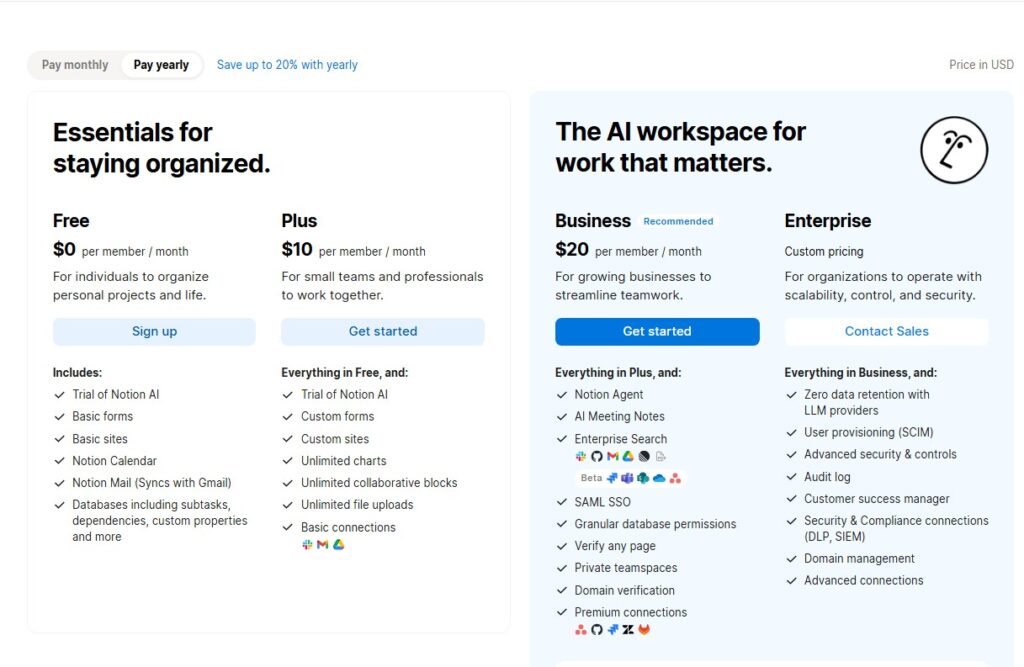
At the time of writing, the Notion pricing page shows:
| Plan | Current Annual-Billing Price Shown | AI Access Positioning |
|---|---|---|
| Free | $0 per member/month | Limited trial of Notion AI |
| Plus | $10 per member/month | Limited trial of Notion AI |
| Business | $20 per member/month | Notion Agent, AI Meeting Notes and Enterprise Search Beta |
| Enterprise | Custom pricing | Business features plus advanced security and zero data retention with LLM providers |
Notion’s own Help Center also states that Notion AI is available on the Business and Enterprise plans, while Free and Plus users receive a limited number of complimentary AI responses to try its features. distinction matters because the keyword Notion AI free can easily create the wrong expectation.
You can sign up for Notion for free. You can build pages and databases on the Free plan. You can try limited AI capabilities. But if you want Notion AI to become a regular part of your working system, you should expect to consider the Business plan rather than relying permanently on free AI usage.
That does not make the Free plan useless. In fact, for a blogger testing whether Notion fits their workflow, the free version is a sensible place to start.
You can check all Notion plans here and what the plus, business, and enterprise plans offer in detail.
Why I Tried Notion for My Blogging Workflow
My reason for testing Notion was practical. I wanted to organise my articles in a way that could eventually connect with automation.
When you are running a blog, especially one that covers AI tools and content workflows, each article can involve many small pieces:
- Main keyword.
- Article title.
- Draft status.
- Published URL.
- Internal links.
- Featured image.
- Meta description.
- Pinterest Pin ideas.
- Social media promotion.
- Future update date.
- Notes about tools tested.
- Screenshots or source links.
I wanted a place where all of that could live together.
A simple spreadsheet can absolutely hold columns for title, keyword, status, and URL. In fact, when I first tried connecting article-related automation, Google Sheets felt much easier because it is so direct. One article equals one row. Each piece of information goes into a column. There is a very little learning curve.
Notion is different. It wants you to think in terms of pages, databases, properties, linked information, templates, and views. That gives you more control, but it also means there is more to understand before your system feels natural.
That was my first frustration: I wanted quick automation, and Notion made me pause to think about the structure first.
However, that structure is also the reason Notion becomes more attractive once your content system grows.
My First Impression: Notion Felt Harder Than Google Sheets
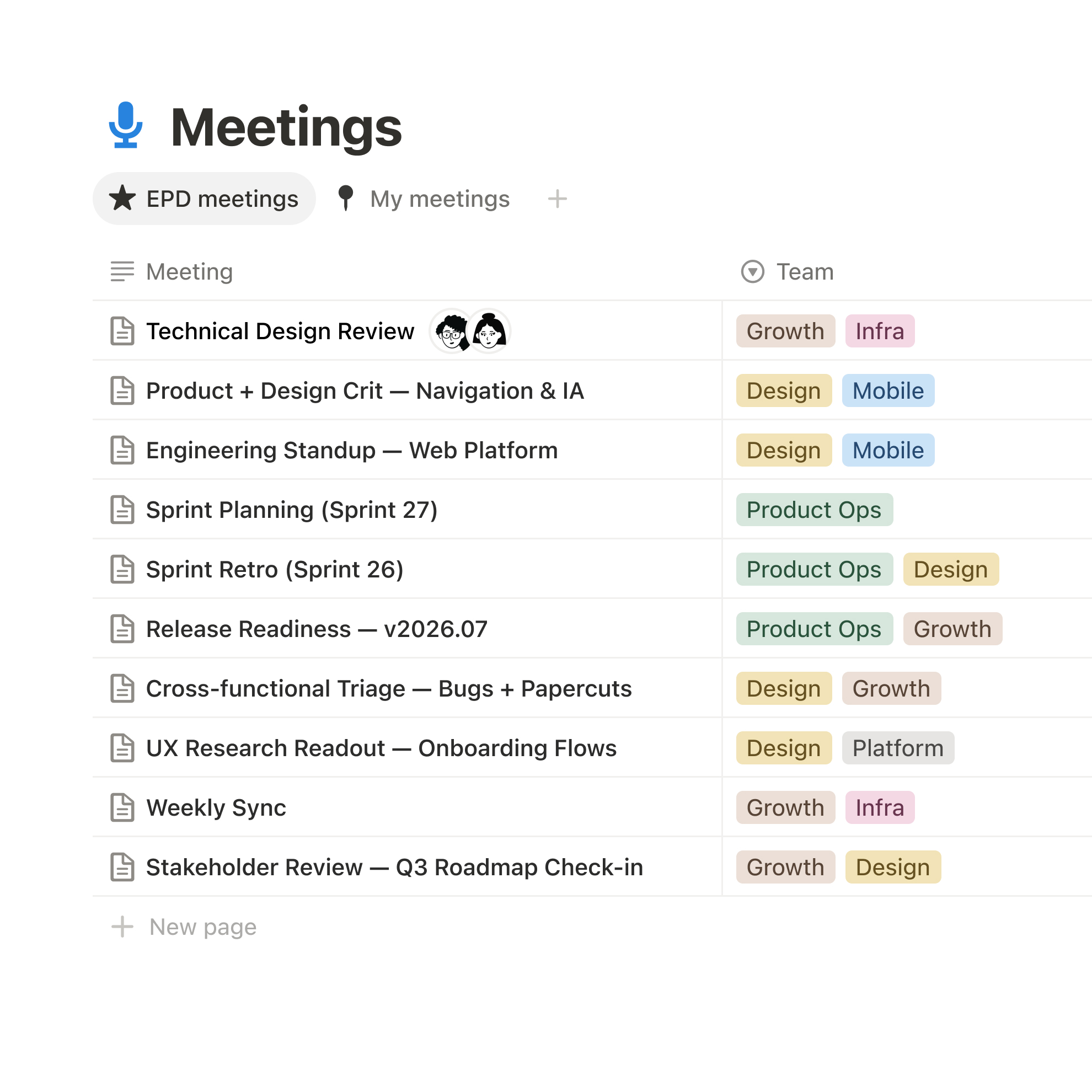
When I entered Notion, I started inside a template-style page called “Getting started with docs.” It immediately looked more like a professional workspace than a spreadsheet.
There were page details, tags, comments, linked sections and documentation-style blocks. It looked polished, but for someone trying to quickly set up article automation, it also felt like there was more to learn before I could get moving.
Suggested image placement:
Insert your screenshot of the Notion “Getting started with docs” dashboard here.
Suggested caption: My first look inside Notion: professional and organised, but more structured than the simple spreadsheet workflow I was used to.
With Google Sheets, I can open a blank sheet and immediately create columns:
| Article Title | Keyword | Status | URL | Internal Links | Featured Image |
|---|
It is not fancy, but it works quickly.
With Notion, I needed to consider:
- Should each article be a page?
- Should I build a database?
- What properties should each article have?
- Should I create views for draft, published and promotion stages?
- How will I eventually connect this with automation?
For someone who wants a simple content tracker today, that may feel unnecessary.
But for someone who wants an actual publishing dashboard — not just a list — Notion starts to make much more sense.
Why Notion Still Felt More Professional
Even though I found Google Sheets easier for a simple article automation test, Notion impressed me differently.
A spreadsheet is mainly data in cells. Notion can hold the data and the complete working context behind it.
For example, one article record in Notion could include:
- The keyword.
- SEO title.
- Article status.
- Publish date.
- WordPress URL.
- Full article draft.
- Screenshots from a tool test.
- Embedded videos.
- Pinterest caption ideas.
- Notes about the tool’s pricing.
- Internal-link checklist.
- A connected calendar date.
- Update reminders.
- A content brief for future editing.
This is the part that felt more professional to me. Instead of keeping a spreadsheet, Google Docs drafts, screenshots folder, and planning notes in separate places, Notion can potentially become the central workspace for all of them.
Notion officially describes its databases as a way to organise large sets of items with custom properties, subtasks, and dependencies. Its AI features can also help create databases, add views and properties, autofill database information such as summaries or keywords, and assist with formulas in supported plans or trials. For a starting blogger, this opens up much better organisation than a basic sheet alone.
What Bloggers Can Build in Notion Without Depending on AI
One of the biggest misconceptions around Notion AI free is that Notion is only valuable if you pay for the AI side.
That is not true.
Before even deciding whether the AI upgrade is worth it, a blogger can use regular Notion features to build a useful content hub.
1. An Editorial Calendar
Create a database with fields for:
- Article title.
- Main keyword.
- Category.
- Status.
- Due date.
- Publication date.
- URL.
- Content type.
Then create separate views:
- Ideas.
- In Progress.
- Ready to Publish.
- Published.
- Needs Update.
This gives you a more visual publishing system than simply scrolling through spreadsheet rows.
2. A Tool Testing Database
For a website like AI For Bloggers Hub, this could be particularly useful.
Each tool page could contain:
- Tool name.
- Official website.
- Plan tested.
- Screenshot gallery.
- Prompt used.
- Output received.
- What worked.
- What failed.
- Who I recommend it for.
- Related article URL.
This would help you turn your real testing process into original, creator-led articles rather than relying on generic summaries.
For example, if you test an AI image generator for featured images, you could save the prompts, outputs, and notes in one Notion page, then later turn that information into an article.
3. An Internal Linking Database
As your site grows, internal linking becomes harder to track manually.
You could create a content database with categories such as:
- AI Blogging.
- WordPress Automation.
- Social Media Growth.
- Monetisation.
- AI Video Tools.
- AI Image Tools.
Then, whenever you write a new article, you can quickly review related posts that may deserve an internal link.
If you are building related content clusters, examples include:
- Best AI Tools for Bloggers
- AI Blog Writing
- Zapier AI Workflows for Bloggers
- Free Personal Assistant Apps
4. A Content Promotion Tracker
Publishing an article is only one step. You may also need:
- Featured image created.
- Facebook post written.
- Pinterest Pin created.
- Newsletter mention scheduled.
- The article was shared again later.
- Content update reminder.
Notion can keep these tasks attached to the article page rather than spread them across disconnected files.
What Notion AI Could Add to a Content Workflow
The free Notion workspace is useful for personal organisation. The AI side becomes more interesting when you want help working with the information already stored inside that workspace.
According to Notion’s official documentation, Notion AI can support writing and editing directly inside a page, create outlines, email drafts or tables, summarise pages, brainstorm topics, translate content, and help create or populate databases. Business and Enterprise plans also include features such as Notion Agent, AI Meeting Notes, and Research Mode. blogger, that could mean using Notion AI to:
Summarise Your Article Notes
If you store research notes, tool screenshots, and draft sections on one page, AI could help create a short content brief or summary.
Turn Testing Notes Into an Article Outline
Suppose you tested Buffer, Canva, or an AI writing tool and recorded your observations. Instead of starting an article from a blank page, you could ask Notion AI to organise those notes into headings.
Autofill Database Properties
A content database may include properties such as:
- Summary.
- Keyword group.
- Content category.
- Promotion idea.
- Update notes.
Notion AI can assist with database autofill features, which may save time if you manage many articles.
Search Across Stored Knowledge
The real value of a workspace assistant is not only generating new text. It is helping you find things you already saved.
If you eventually have hundreds of articles, prompt tests, screenshots and research notes, being able to ask questions about your own workspace could become genuinely useful.
Prepare Meeting Notes or Collaborative Work
If you later work with freelancers, editors, or virtual assistants, Notion’s Business features, such as AI Meeting Notes and more advanced workspace search, may make more sense than they do for a solo beginner.
Where Notion AI Free Felt Limited for My Use Case
This is where I want to be honest.
My initial goal was not simply to write inside Notion. I wanted it to help support an article automation system.
For that first use case, Notion did not immediately feel as easy as Google Sheets.
Google Sheets Was Easier for Simple Automation
For a workflow such as:
New WordPress article published → Save title, keyword and URL
Google Sheets is very straightforward.
There is no need to think much about page structure, database views or linked content. It is easy to see what information arrived and whether the automation worked.
If your first workflow is very basic, I would still start with Google Sheets.
Notion Requires More Setup Thinking
Notion becomes useful when you know what system you want to build. But if you are still deciding on your process, it can feel like you are designing the filing cabinet before you have decided what papers you need to store.
That is not a flaw in the software. It is simply a higher setup cost.
The AI Is Not Permanently Free
This is probably the most important limitation for someone searching for Notion AI free plan.
The Free plan lets you try AI features through limited complimentary responses. It is not designed as a permanently free, unlimited AI writing or assistant system. If AI inside your content workspace becomes essential, the plan you would seriously evaluate is Business, currently shown at $20 per member per month on annual billing. Notion Free vs Plus vs Business: Which One Makes Sense for Bloggers?
Suggested image placement:
Insert your screenshot of the Notion pricing table here.
Suggested caption: Notion’s current annual pricing view shows the Free and Plus plans with a trial of Notion AI, while the Business plan is positioned as the AI workspace plan.
Free Plan: Best for Testing Your Content System
The Free plan is the right starting place if you want to:
- Explore Notion pages and databases.
- Build a simple editorial calendar.
- Organise content ideas.
- Try a small amount of Notion AI.
- Decide whether the structure suits your brain.
The Free plan currently includes basic forms, basic sites, Notion Calendar, Notion Mail syncing with Gmail, and databases with custom properties, subtasks, and dependencies. Individual users can add unlimited pages and blocks, though uploaded files on the Free plan are limited to 5 MB each. ended for:** solo bloggers testing Notion for organisation.
Not recommended for: creators expecting regular AI assistance for free.
Plus Plan: Better Organisation, but Not the Full AI Upgrade
The Plus plan currently appears at $10 per member/month on annual billing. It adds features such as custom forms, custom sites, unlimited charts, unlimited file uploads, and basic connections.
But this is important: Plus still lists a trial of Notion AI, not ongoing full Notion AI access.
Recommended for: creators who love Notion as an organisational workspace and need larger uploads, better site options, or richer database visuals.
Not recommended for: someone upgrading mainly because they want full Notion AI access.
Business Plan: The Serious AI Workspace Option
The Business plan currently appears at $20 per member/month on annual billing and is the plan where Notion positions its main AI workspace features, including:
- Notion Agent.
- AI Meeting Notes.
- Enterprise Search Beta.
- Premium connections.
- Granular database permissions.
- Private teamspaces.
- Verified pages.
For a solo blogger, $20 per month may feel unnecessary if you only want a place to track articles. But for a growing content business storing research, tool tests, team tasks, meeting notes and connected app knowledge, the Business plan becomes easier to justify.
Recommended for: serious content businesses, small teams, bloggers managing a large testing and publishing system, or creators who genuinely want AI integrated into their workspace.
Not recommended for: someone who only needs a basic article tracker.
Notion vs Google Sheets for Bloggers: My Honest Comparison
| Area | Google Sheets | Notion |
|---|---|---|
| Initial setup | Very easy | Takes more thought |
| Simple automation | Easier for beginners | Can feel more complicated initially |
| Tracking titles and URLs | Excellent | Excellent once database is built |
| Storing full articles | Awkward | Much better |
| Adding videos and visual notes | Limited | Strong |
| Organising screenshots and testing evidence | Possible, but messy | Much more professional |
| Editorial calendar views | Basic unless customised | More natural and visual |
| Long-term content knowledge base | Limited | Stronger |
| Best for | Quick tracking and automation | Full content management system |
My conclusion is simple:
Google Sheets is easier when you need a quick automation destination. Notion is better when you want a complete content workspace.
I would not force myself to choose only one. A practical workflow could use Google Sheets for fast automation logging and Notion for richer article planning, testing documentation and content management.
If you later want to connect these systems more deeply, you could explore an automation workflow using tools discussed in Zapier AI Workflows for Bloggers or Best Zapier Free Alternatives.
Who Should Use Notion AI?
Notion AI Is Recommended For:
- Bloggers who want one organised workspace for articles, notes, research, and promotion.
- Content creators store screenshots, videos, and tool test results.
- Small teams working on an editorial calendar together.
- Creators who already like Notion and want AI embedded inside the same system.
- People managing large amounts of information that they may later need to search or summarise.
Notion AI May Not Be Worth It For:
- Bloggers who only need a basic list of article titles and URLs.
- Beginners who want the easiest possible automation setup.
- Creators expecting unlimited AI use from the Free plan.
- Anyone who already has a working spreadsheet system and does not need a richer workspace.
- People who dislike spending time building systems before using them.
My Honest Take
I do not regret trying Notion, even though it was not the easiest option for the first automation idea I had.
Google Sheets gave me a faster starting point. If all I want is to receive article information from an automation and track simple fields, Sheets makes sense.
But Notion made me think beyond a simple tracking table.
For a site where I am reviewing AI tools, testing prompts, creating graphics, planning articles, and building a content library, Notion could become much more valuable over time. It gives me somewhere to store not only the article URL, but the reason I wrote it, the tool screenshots, the testing notes, the promotional ideas, and future update tasks.
Would I immediately pay for Notion Business only for Notion AI? Not yet, unless I had a clear repeatable workflow that saved enough time to justify the subscription.
Would I use the Free plan to build and test a proper content dashboard? Yes.
Would I consider the Business plan later if my content system grows and I need AI to work across stored knowledge, meetings, databases, and connected apps? Definitely.
That is the balanced answer: Notion AI is promising for a serious content workspace, but the free version is mainly for testing the fit, not for depending on unlimited AI support.
Common Mistakes to Avoid
1. Assuming “Notion AI Free” Means Unlimited AI
Notion is free to start, but its Free and Plus plans currently provide limited AI trials. Do not build your full workflow assuming unlimited AI access without upgrading.
2. Starting With a Complicated Database Before Knowing Your Workflow
Before creating ten categories and twenty properties, decide what you actually need to track.
Start with:
- Title.
- Keyword.
- Status.
- URL.
- Category.
- Publish date.
- Promotion status.
Add more only when you genuinely use them.
3. Moving From Google Sheets Too Quickly
If Google Sheets already works for basic automation, you do not need to abandon it immediately. Notion may complement your workflow rather than replace it.
4. Using AI Without Adding Your Real Experience
If you review tools on your blog, save your real screenshots, prompts, problems, and conclusions in Notion. Those are the details that make your content original and genuinely useful.
5. Paying for Business Before Testing the Free Workspace
Build a small editorial system first. Use the limited AI trial. Decide whether Notion fits your workflow before paying for a more advanced plan.
Simple Setup Idea: A Notion Content Database for Bloggers
Start with a database called Blog Content Hub.
Create these properties:
| Property | What to Store |
|---|---|
| Article Title | Working or published headline |
| Main Keyword | SEO target phrase |
| Category | AI Blogging, Automation, Social Media, Monetisation |
| Status | Idea, Draft, Editing, Published, Update Needed |
| Publish Date | Planned or actual date |
| URL | Live WordPress link |
| Tool Tested | Product used in the article |
| Evidence Added | Screenshot or test notes included? |
| Promotion Status | Pinterest, Facebook, newsletter |
| Internal Links | Related articles to add |
Then create a page template for every article containing:
- Article angle.
- Reader problem.
- Tool tested.
- Screenshots.
- Official source links.
- What worked.
- What did not work?
- Draft outline.
- Promotion ideas.
- Update notes.
This is where Notion begins to feel genuinely different from a spreadsheet. It becomes a record of your actual publishing process and the proof behind your articles.
Conclusion: Is Notion AI Free Worth Trying for Bloggers?
If you are searching for Notion AI free, the most important thing to know is that Notion offers a free workspace with a limited AI trial — not unlimited ongoing AI use.
For my first purpose, connecting article information into an automation workflow, Google Sheets felt simpler and faster. I understood immediately where every piece of data should go.
But Notion felt more professional once I thought about the bigger picture. It can store full article pages, databases, screenshots, videos, calendar information, testing notes, and promotion plans in one place. For a blogger growing a real content system, that matters.
My recommendation is:
- Start with the Free plan if you want to test Notion as a content workspace.
- Use Google Sheets if you only need quick, simple article automation.
- Consider Notion Plus if you like the organisation features and need better uploads, charts or site options.
- Consider Notion Business only when its ongoing AI workspace features, Notion Agent, meeting notes, and connected knowledge search solve a real problem in your workflow.
Notion AI is not a free replacement for every writing or automation tool. But Notion itself can be a strong home for a serious blogging system — especially when your content is built from real testing, screenshots, notes, and original experience.