
When I first opened Genspark AI, it did not feel like a normal writing assistant or another basic chatbot. It looked more like a new generation of workspace: one place for documents, slides, images, videos, files, workflows and AI-powered tasks.
That immediately caught my attention because, as a blogger, my work is never only about writing an article. A single post can involve research, outlining, images, social content, featured visuals, presentations, videos, saved files and eventually automation.
I had already been thinking about how tools such as Notion, Google Sheets and automation platforms could help organise my content system. Then I tried Genspark AI, and the first thing I wanted to test was simple: could it create useful presentation content for a blogger?
So, is Genspark AI worth using for bloggers, creators and small website owners? Is it an alternative to separate tools for slides, video, images and workflow automation? And who will find it useful enough to justify paying for more access?
This review is based on my direct experience inside Genspark AI, including the dashboard, AI Slides tool, Drive area and Workflows section, together with publicly available information from the official Genspark AI Workspace website.
What Is Genspark AI?
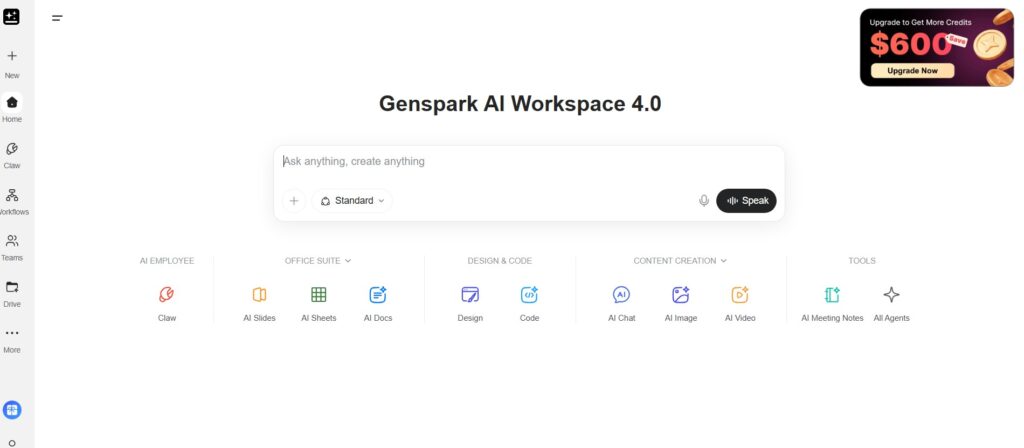
Genspark AI describes itself as an all-in-one AI workspace. When I entered the platform, the dashboard was labelled Genspark AI Workspace 4.0, with a central prompt box asking me to “Ask anything, create anything.”
Under that, the workspace displayed several areas:
- AI Slides
- AI Sheets
- AI Docs
- Design
- Code
- AI Chat
- AI Image
- AI Video
- AI Meeting Notes
- All Agents
- Claw, listed under AI Employee
The official Genspark website also lists tools for presentations, PowerPoint generation, flowcharts, diagrams, portfolios, pitch decks, ebooks, market research, document generation, AI images, infographics, videos, podcasts, voice cloning and image-to-video creation.
That is an important difference between Genspark and simpler AI writing tools.
A tool such as ChatGPT or Claude may help you draft an outline or improve an introduction. Genspark appears to be trying to become a broader creation workspace where you can generate actual assets and organise tasks in one environment.
For a blogger, that could mean using one platform for:
- Creating a presentation from a blog topic.
- Making images for social content.
- Generating video ideas.
- Storing files.
- Building workflows.
- Preparing content documents.
- Creating supporting assets for an article.
That sounds attractive, especially when you are tired of switching between several platforms. But having many tools available does not automatically mean you will need all of them.
Why I Decided to Test Genspark AI as a Blogger
My blog focuses on AI tools, content creation, automation and systems that help bloggers work more efficiently. Because of that, I do not just want to read what a tool claims it can do. I want to use it in a real blogging situation.
For Genspark AI, I started with something practical: presentations.
A blogger may want a short slide deck for:
- A course lesson.
- A webinar.
- A Pinterest or social media content idea.
- An embedded educational resource inside an article.
- A tutorial for readers.
- A lead magnet or downloadable visual guide.
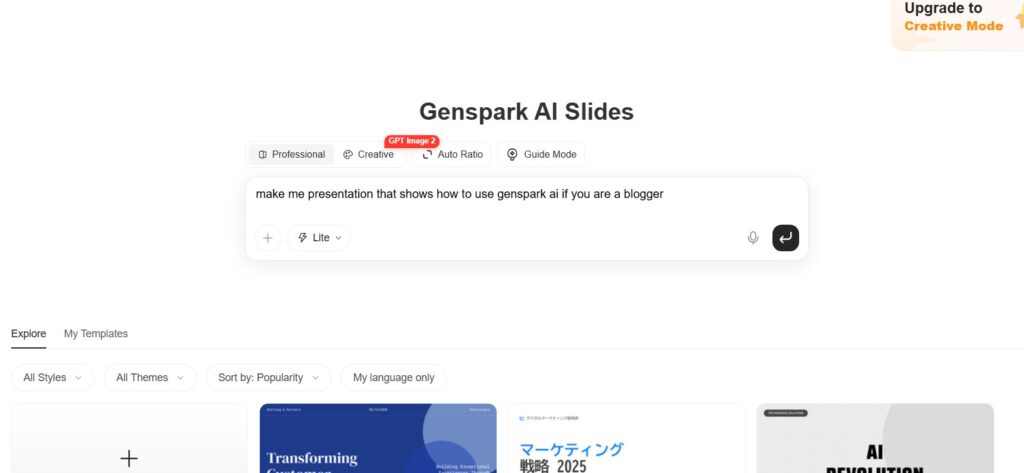
So I opened the AI Slides area and entered this prompt:
Make me a presentation that shows how to use Genspark AI if you are a blogger.
I did not spend a long time designing a complex prompt. I wanted to see what it could do with a fairly natural instruction from a beginner.
The result gave me four slides and HTML code that could potentially be placed on a website. That was a useful surprise. It showed me that Genspark was not only generating text for me to copy elsewhere; it was trying to produce a usable format.
My first Genspark AI test: I asked it to create a presentation showing bloggers how to use the platform
My First Test: Creating AI Slides From a Simple Prompt
The presentation test was where Genspark made the strongest first impression on me.
The AI Slides screen offered several choices before generation:
- Professional mode
- Creative mode
- Auto Ratio
- Guide Mode
- A Lite generation option is visible inside the prompt area
This made the tool feel more focused than simply writing “create slides” into a regular AI chat. It looked like a dedicated presentation workspace, with formatting and style decisions built into the generation process.
I entered a prompt asking it to make a presentation showing how bloggers could use Genspark AI. It created four slides for me and even gave me HTML code that I could potentially add to my website. That made the tool feel more ambitious than a standard AI generator. It was not simply giving me paragraphs of text. It was trying to produce something I could actually use.
At the same time, I noticed a limitation quickly: compared with Twin, which gave me more generous starting credits in my own testing, Genspark felt more limited at the beginning. It may be more capable and more specific in what it can create, but you cannot experiment endlessly before you begin thinking about credit usage.
What I Liked
The main thing I liked was that the output felt closer to a finished asset.
Instead of receiving:
Slide 1: Introduction
Slide 2: Benefits
Slide 3: Workflow
and then having to rebuild the deck manually in another tool, I received actual slides. The HTML output also caught my attention because, as a WordPress website owner, I am always thinking about how generated content might be reused on a real page.
This could be helpful for bloggers who want to create:
- Visual tutorials.
- Mini presentations inside articles.
- Educational content for readers.
- Course material.
- Branded explanation slides.
- Social carousel concepts.
What Still Needs Testing
Four slides from one prompt is a promising first test, but it is not enough for me to say that Genspark can replace presentation software completely.
Before relying on it for regular content creation, I would still want to test:
- How editable the finished slides are.
- Whether the HTML displays properly on WordPress.
- Whether the design looks good on mobile.
- Whether branding can be kept consistent.
- How many credits does a longer presentation uses
- Whether exporting is simple and clean.
- Whether the generated information is accurate.
This is where many AI tools sound wonderful at first, but need more testing before becoming part of a real workflow.
Genspark AI Looks Like More Than a Content Generator
After the slides test, I explored the wider dashboard. This is where I started thinking of Genspark differently.
The homepage was not organised like a simple chat tool. It looked like a full workspace divided into functions:
| Area Visible in My Dashboard | Possible Blogger Use |
|---|---|
| AI Slides | Course material, visual tutorials, presentations |
| AI Sheets | Content tracking, research tables, planning |
| AI Docs | Article notes, content briefs, documents |
| Design | Blog graphics, promotional assets |
| Code | Website or embedded content support |
| AI Chat | Brainstorming, questions, research assistance |
| AI Image | Featured images and social visuals |
| AI Video | Repurposing articles into video content |
| AI Meeting Notes | Team or client call summaries |
| All Agents | More specialised AI tasks |
| Drive | File organisation and generated-asset storage |
| Workflows | Repeatable automated tasks |
The official website supports that broader positioning, listing tools for writing, visuals, audio, video and business productivity.
For me, that is the real attraction of Genspark AI. It feels less like “use AI to write a paragraph” and more like “use AI to produce and organise different parts of your work.”
That does not mean it automatically replaces every individual specialist tool. Canva may still be easier for branded design. Google Sheets may still be quicker for basic tracking. Zapier or n8n may still offer more established automation connections. But Genspark is clearly aiming at a broader workflow.
Testing Genspark Drive: A Workspace for Created Files
I also opened the Drive area.
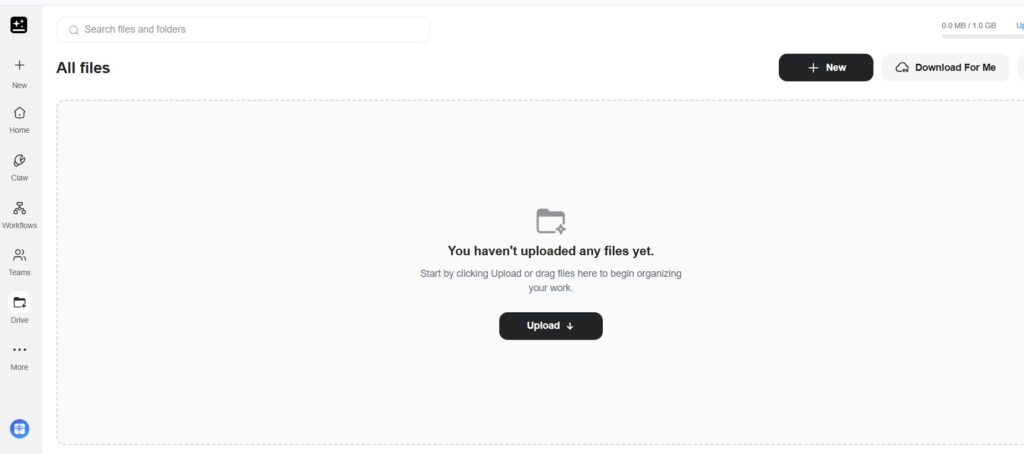
At the time of my test, it was empty because I had not uploaded any files yet. The screen gave me the option to upload files or create new items, and the storage indicator showed 1.0 GB available in my account view.
This is a small feature, but it matters if you are creating content assets regularly.
A blogger using several AI tools often ends up with files everywhere:
- Featured images downloaded to a desktop folder.
- Video drafts saved in another platform.
- Slide exports are stored somewhere else.
- Article notes in Google Docs.
- Social caption drafts inside a chat history.
The Genspark Drive area in my account showed a simple file workspace with 1.0 GB of visible storage when I tested it.
If Genspark Drive can keep generated outputs and uploaded source materials in one place, that could become useful for a creator managing multiple content formats.
Who This Could Help
The Drive area may be especially useful for:
- Course creators are generating lessons and presentations.
- Bloggers create images and videos on one topic.
- Small teams sharing generated assets.
- Creators who want AI outputs stored in one workspace rather than across several tools.
What I Would Still Need to Know
Before depending on it, I would check:
- What happens when the storage limit is reached.
- Whether paid plans increase storage.
- Whether files can be organised easily into folders.
- Whether the generated files export cleanly.
- Whether files can be connected to workflows without repeated manual steps.
At this stage, I see the Drive feature as promising organisation support, but not yet a reason on its own to switch tools.
Genspark Workflows: Why It Feels Like a New Kind of Automation
The part of Genspark that interested me most was the Workflows section.
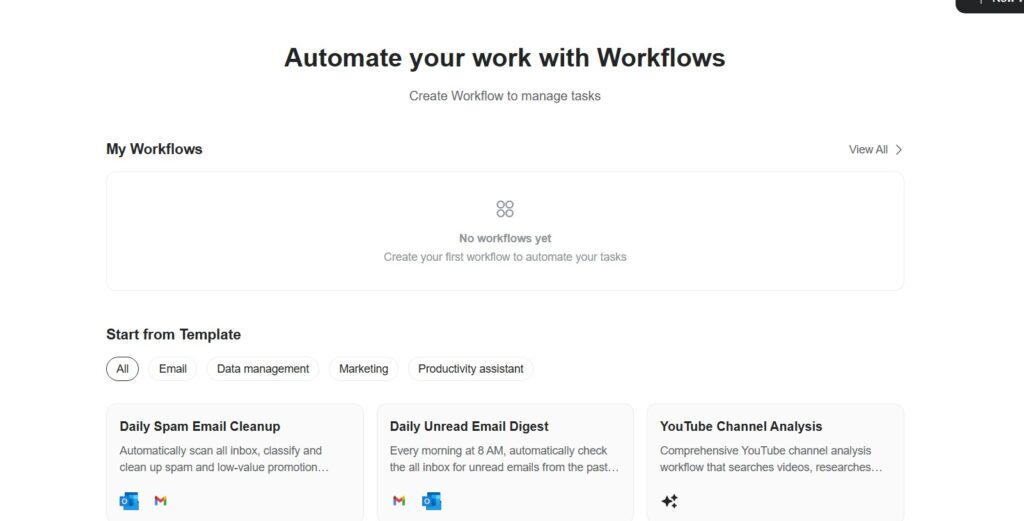
When I entered it, I saw a screen titled:
Automate your work with Workflows
It offered the option to create my first workflow and showed several ready-made templates, including:
- Daily Spam Email Cleanup
- Daily Unread Email Digest
- YouTube Channel Analysis
There were also template categories such as:
- Data management
- Marketing
- Productivity assistant
This is where Genspark began to feel like a new generation of automation tool to me.
Traditional automation tools often require you to think in technical sequences:
Trigger → action → filter → another action.
Genspark’s workflow area felt more task-driven. The template names describe the result the user wants, such as cleaning an email or analysing a YouTube channel, rather than immediately asking the user to construct every step.
That could be much easier for non-technical users who know what they want accomplished but do not yet understand how to build an automation.
Suggested image placement:
Genspark Workflows vs Zapier-Style Automation
I have been exploring automation from a blogger’s point of view, including workflows for WordPress articles, Google Sheets, Pinterest tasks and AI-generated content drafts.
With a tool such as Zapier, a beginner can connect apps using straightforward workflows. With n8n, a more technical user can create advanced multi-step processes with deeper control.
Genspark feels different.
From my first look, it seems to focus on AI-powered tasks and ready-made workflow outcomes, rather than only moving information from one app to another.
For example, a blogger might eventually want a workflow that:
- Reviews a YouTube channel for topic ideas.
- Creates a daily email digest.
- Generates presentation material from research.
- Prepares visual content from a written idea.
- Organises files and outputs in one workspace.
That is not exactly the same as:
When a WordPress post publishes, add its URL to Google Sheets.
For simple publishing automation, I would still be more comfortable starting with tools covered in my guides to Zapier AI Workflows for Bloggers and Best Zapier Free Alternatives.
But for content-heavy, AI-assisted tasks, Genspark may become more interesting.
Genspark AI vs Twin: My Experience With Starting Limits
One thing I noticed early was the difference in starting freedom.
When I tested Twin, I felt that it gave me more generous credits at the beginning. That made it easier to explore without immediately worrying about how many tests I had left.
With Genspark, my impression was that the starting limits were lower. That matters because a platform with slides, images, videos and workflows naturally encourages experimentation. You want to try several prompts, compare outputs and see which features are actually useful for your content process.
At the same time, Genspark felt more specific and potentially more powerful in what it could create. The slide generation was not simply an idea list; it produced slides and HTML output. The workspace includes video, image, design, code, documents, sheets and workflows under one account.
So my comparison is not that one is clearly better.
My honest early impression is:
| Area | Twin in My Testing | Genspark AI in My Testing |
|---|---|---|
| Starting credits | Felt more generous | Felt more limited initially |
| Ease of experimenting at first | Easier to keep testing | Needed more care with usage |
| Workspace scope | Useful for testing AI tasks | Felt broader and more specialised |
| Slides test | Not the focus of this test | Created four slides and HTML code |
| Long-term potential | Still worth comparing | Appears strong for multi-format creation |
I would need to run the same task through both platforms before making a full direct comparison. For now, this is simply my experience from beginning to explore each tool.
What Can Bloggers Use Genspark AI For?
Genspark is not only relevant to large teams or technical users. Several visible tools could be useful in a real blogging workflow.
1. Turning Article Topics Into Presentations
If you teach, create tutorials or plan lead magnets, AI Slides could help turn written topics into visual material.
Example uses:
- A presentation explaining Pinterest SEO.
- A mini-course lesson about AI blog writing.
- A visual comparison of two automation tools.
- Slides to support a webinar or downloadable resource.
2. Creating Images and Visual Content
The workspace includes AI Image and Design areas, and the official website lists image generation, photo editing, infographic generation, flyers and posters.
This could help with:
- Featured image concepts.
- Social media graphics.
- Pinterest inspiration.
- Visual elements for educational posts.
However, I would still edit final designs carefully, especially when visible text or brand consistency matters.
3. Exploring Video Repurposing
The dashboard includes AI Video, while the official tool list includes AI Video Generator and Image to Video AI.
For bloggers, video tools can be useful if you want to turn articles into:
- Short explainer videos.
- Faceless content ideas.
- Social clips.
- Visual summaries.
If video repurposing is your main interest, you may also want to explore my content around best AI video generators before deciding which platform fits your workflow.
4. Building Workflows From Templates
Ready-made workflow templates may help creators begin automation without designing every technical connection from scratch.
Potential uses could include:
- Email organisation.
- Content research.
- Marketing-related tasks.
- Productivity support.
- Video channel analysis.
5. Keeping Content Assets Together
The Drive feature could provide a central place for files, slides, generated images and future outputs.
This becomes more valuable once you are creating several assets from every article.
Pricing and Credit Limits: What I Could and Could Not Verify
This is the part where I want to be careful.
Genspark showed upgrade messaging and credit-related limits inside my test account. I could also clearly feel that the initial experimentation allowance was less generous than what I experienced with Twin.
However, when checking the public-facing Genspark site for this article, I could verify the workspace tools and product areas, but the pricing page redirected to a login flow rather than displaying a public pricing table that I could independently cite. For that reason, I do not want to publish exact current plan prices or exact credit totals without confirming them from the account’s upgrade page at the time of publication.
Before publishing this review, I would add a current screenshot from your own Genspark pricing or upgrade screen here.
Suggested Pricing Section to Update Before Publication
| Plan | Monthly Price | Credits / Usage | Storage | Best For |
|---|---|---|---|---|
| Free / Starting Access | Confirm in account | Confirm in account | 1.0 GB visible in my starting Drive view | Testing basic features |
| Paid Plan 1 | Add verified amount | Add verified credits | Add verified storage | Regular creators |
| Paid Plan 2 | Add verified amount | Add verified credits | Add verified storage | Heavy usage or teams |
A tool can look affordable monthly, but become expensive if every useful action consumes credits quickly.
Genspark AI: Best For and Not Best For
Genspark AI May Be Best For:
- Bloggers who want to create several types of content from one workspace.
- Creators interested in slides, visuals and video alongside writing.
- Course creators are preparing educational assets.
- Small businesses exploring AI-powered workflows.
- People who prefer ready-made task templates over building automation entirely from scratch.
- Bloggers are building visual, educational or multimedia content around their articles.
Genspark AI May Not Be Best For:
- Someone who only needs an AI writing chatbot.
- A blogger looking for unlimited free experimentation.
- Users who only need simple WordPress-to-spreadsheet automation.
- Creators who want fully proven workflows before spending time testing.
- Anyone who needs exact, predictable pricing before trying multiple generation tools.
How Genspark Compares With Other Tools in a Blogger Workflow
| Task | Tool I Would Consider First | Where Genspark Fits |
|---|---|---|
| Writing article drafts | ChatGPT, Gemini or another writing assistant | Useful through AI Docs or AI Chat, but still needs testing |
| Simple article tracking | Google Sheets or Notion | AI Sheets and Drive may support a broader workspace |
| WordPress automation | Zapier, Make or n8n | Workflows look promising for AI-driven tasks |
| Presentation creation | Genspark AI Slides or dedicated slide tools | One of the strongest features I tested |
| Featured image creation | Canva, Ideogram or AI image tools | AI Image and Design areas are available |
| Video repurposing | Dedicated video tools or Genspark | AI Video is available and worth testing |
| File organisation | Google Drive or Notion | Built-in Drive may keep generated assets together |
This is why I would not describe Genspark as simply another AI writing tool. It is much closer to an AI creation workspace with automation ambitions.
For creators comparing broader AI systems, my guides on Best AI Tools for Bloggers and Free Personal Assistant Apps may also help clarify which tool belongs in which part of a workflow.
My Honest Take
My first experience with Genspark AI was positive, but not without reservations.
The positive part is clear: it feels ambitious. The dashboard brings together tools that bloggers increasingly need — documents, slides, images, videos, storage and workflows. The AI Slides test gave me something tangible very quickly: four slides and HTML output that could potentially be reused on my website.
The Workflows area was also interesting because it felt less technical than traditional automation tools. Instead of beginning with empty triggers and actions, it showed task-based templates such as daily email cleanup and YouTube channel analysis. That makes the idea of automation easier to understand for people who are not developers.
My reservation is the credit limitation. AI tools become useful only after you test them properly, and testing means trying prompts, changing styles, producing several assets and sometimes getting results you do not use. If the starting allowance is limited, it may be difficult for a beginner to explore everything before deciding whether it is worth paying for.
I would not recommend Genspark AI to someone who only wants to draft blog paragraphs. There are simpler tools for that.
I would recommend testing it if you are a blogger or creator who wants to produce more than text: presentations, images, videos, downloadable content, educational assets or AI-assisted workflows.
My next test would be practical: take one real article from my website and use Genspark to create a complete repurposing set:
- A short presentation.
- A featured image concept.
- A short video draft.
- A promotional document or summary.
- A workflow to organise or reuse the content.
That would show whether Genspark can genuinely reduce the need to switch between multiple tools, or whether it simply provides many features that still require too much separate editing.
Common Mistakes to Avoid When Testing Genspark AI
1. Trying Every Tool Without a Real Use Case
Do not spend credits opening slides, images, videos, and workflows randomly. Start with a real article or project and test whether the tool helps you complete it.
2. Assuming Generated Slides Are Ready to Publish
Even when the presentation looks good, check the information, layout, mobile display, brand colours and HTML behaviour before placing it on your website.
3. Ignoring Credit Usage
If you plan to use slides, video and images regularly, track how quickly your credits are used. That will tell you more about value than the tool list alone.
4. Comparing Tools Without Running the Same Test
My initial impression is that Twin felt more generous with starting credits, while Genspark felt more specialised. A fair comparison requires using the same prompt and the same content task in both platforms.
5. Letting AI Replace Your Real Experience
For a blogger reviewing AI tools, your strongest content is not the generated output alone. It is what you tested, what happened, what you changed and whether the result was actually useful.
Conclusion: Is Genspark AI Worth Trying for Bloggers?
Genspark AI is one of the more interesting AI tools I have tried because it does not feel limited to writing. It presents itself as an all-in-one AI workspace, and my own dashboard showed tools for slides, sheets, documents, design, code, chat, images, video, meeting notes, file storage and workflows.
My first practical test — asking it to create a presentation showing bloggers how to use Genspark — produced four slides and HTML code that I could potentially use on my website. That gave me a real reason to keep testing it.
At the same time, the starting limits felt less generous than Twin in my early experience. That matters if you are a beginner who needs room to experiment before understanding what features are valuable.
My recommendation is simple:
- Use Genspark AI if you want to test a broader creator workspace for slides, images, videos and AI-powered tasks.
- Do not choose it only because you need help writing basic blog drafts.
- Check the current credit and pricing details inside your account before depending on it.
- Test it on one real article or content project before deciding whether it belongs in your workflow.
For bloggers trying to build more visual, organised and automated content systems, Genspark AI may be worth exploring. But like most AI tools, its real value will depend less on how many features appear on the dashboard and more on whether those features help you create useful content without adding extra cost or confusion.