
When I first started exploring WordPress workflow automation, I was honestly excited.
The idea sounded perfect: connect WordPress with AI, Google Sheets, automation tools, email marketing, social media, SEO plugins, and maybe even publish articles automatically while I focus on “bigger things.”
And if you are a blogger, small website owner, affiliate marketer, or content creator, I know why this sounds tempting.
There are so many repetitive tasks inside WordPress. Writing drafts. Uploading images. Adding categories. Creating meta descriptions. Sharing posts. Updating spreadsheets. Sending emails. Checking forms. Organizing content ideas. Creating Pinterest pins. Reviewing SEO. Adding internal links. Scheduling posts.
So when you hear that tools like Zapier, Make, n8n, Uncanny Automator, and WP Webhooks can connect apps and automate workflows, it feels like you have discovered a secret shortcut.
But after testing and thinking about this from a real blogger’s perspective, I want to be honest with you:
WordPress automation can save you hours, but it can also ruin your site if you automate the wrong things.
I learned this especially when I tried to use n8n to automate article writing and publishing. In theory, it sounded amazing. Add a keyword, send it to AI, generate the article, create the post in WordPress, add metadata, and maybe publish or schedule it. But in practice, I ran into multiple problems: connecting the website correctly, handling WordPress authentication, using AI credits too fast, fixing formatting issues, reviewing weak drafts, checking links, and trying to make the final result feel professional.
And the honest conclusion I reached was simple:
No matter how much automation I use, I still prefer to handle the actual article creation and final publishing manually if I want professional, satisfying results.
That does not mean I hate automation. Actually, I love useful automation. But I think bloggers need a better mindset. Automation should support the workflow, not replace judgment.
If you are new to this topic, you may also want to read my broader guide on WordPress automation. This article goes deeper into the workflow side: what should be automated, what should stay manual, what tools help, and where automation can create generic, unhelpful content.
What Is WordPress Workflow Automation?
WordPress workflow automation means creating systems that automatically move tasks from one step to another inside or around your WordPress website.
Instead of doing everything manually, you create workflows like:
- When someone fills out a form, add their email to your email platform.
- When you publish a post, add the URL to Google Sheets.
- When a new article is published, send it to your newsletter draft.
- When a post goes live, share it to social media.
- When a product is purchased, send customer details to a spreadsheet or CRM.
- When a draft is ready, notify you or your editor.
- When an image is uploaded, compress it or generate alt text.
A workflow usually has three parts:
- Trigger: something happens.
- Action: the system does something.
- Condition: rules decide when or how it should happen.
For example:
Trigger: New WordPress post published.
Action: Add the post title and URL to Google Sheets.
Condition: Only if the post category is “AI Tools.”
That is a real workflow. It is simple, useful, and low-risk.
The problem starts when we try to automate everything before we understand the workflow.
The Big Mistake: Trying to Automate the Whole Blogging Process
I understand the temptation.
You see a video or tutorial saying you can create a fully automated AI blog system. The workflow looks like this:
- Add a keyword to Google Sheets.
- Send the keyword to ChatGPT or another AI model.
- Generate article title.
- Generate outline.
- Generate a full article.
- Create an image.
- Create a WordPress post.
- Add category and tags.
- Generate meta description.
- Publish automatically.
On paper, it looks beautiful.
But in real blogging, this can become messy very quickly.
Here is what can go wrong:
- The article sounds generic.
- The structure feels repetitive.
- The AI misses search intent.
- The internal links are weak or wrong.
- The introduction sounds like every other AI article online.
- The examples are too general.
- The claims need checking.
- The article does not match your site voice.
- The formatting breaks inside WordPress.
- The featured image does not fit.
- The automation burns through AI credits.
- The workflow fails because one tool changes, times out, or disconnects.
- You spend more time fixing the automation than writing the article manually.
This is exactly why I no longer believe in fully automated article publishing for serious blogs.
I still use AI a lot. I use it for ideas, outlines, angles, research support, rewriting sections, title options, FAQ ideas, and sometimes first drafts. But the final article needs human direction.
If you care about quality, trust, and long-term SEO, you should not let automation publish content without review.
This connects strongly with my guide on how to humanize AI content before publishing. AI can help, but your final content still needs your voice, examples, judgment, and editing.
What WordPress Automation Can Actually Help With
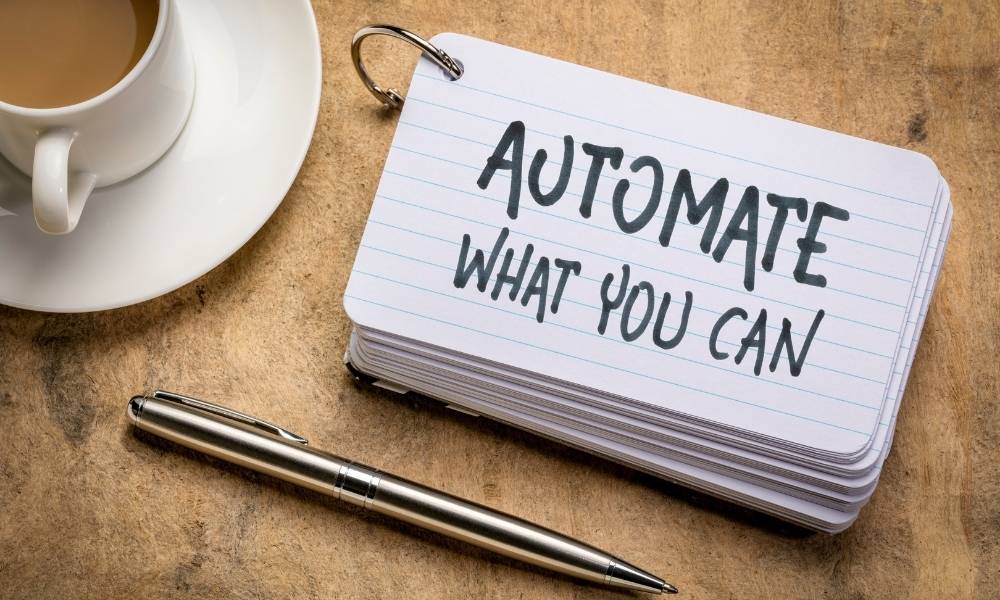
Now let’s talk about the good side.
WordPress workflow automation can be extremely useful when it handles repetitive, low-risk, structured tasks.
These are tasks where the system does not need deep creative judgment.
1. Lead Capture Automation
This is one of the safest and most useful automation areas.
When someone fills out a form on your WordPress site, you can automatically send their details to:
- Your email marketing platform
- Google Sheets
- A CRM
- A notification email
- A Slack or Discord channel
For example:
Someone downloads your free blogging checklist. WordPress sends the email to MailerLite, adds the person to the right group, and sends the freebie automatically.
That is useful. It saves time. It improves the reader experience. It does not damage content quality.
Tools that can help include MailerLite, Kit, Brevo, Zapier, Make, and Uncanny Automator.
If you use lead magnets, you may also like my guide on lead magnet generator ideas.
2. Blog Post Tracking
I love simple tracking automation.
For example, every time you publish a WordPress post, automatically add a row to Google Sheets with:
- Post title
- URL
- Category
- Published date
- Author
- Status
This helps you build a content database without manually copying links.
You can later use that sheet for:
- Content audits
- Internal linking planning
- Updating old posts
- Newsletter planning
- Pinterest pin creation
- Affiliate tracking
This is the type of automation I trust because it supports the content process without trying to replace content quality.
3. Social Sharing Drafts
Automation can help create social media drafts when a post is published.
For example:
New WordPress post published → send title, excerpt, and URL to a social media scheduler as a draft.
Notice I said draft, not automatic posting everywhere without review.
Auto-sharing can be useful, but it can also look lazy if every platform gets the same boring text. A Pinterest description is not the same as a LinkedIn post. An Instagram caption is not the same as a tweet or X post.
So I prefer automation that prepares drafts and reminders, then lets me review and adjust.
For social planning tools, you can explore Buffer, Metricool, Later, or WordPress-focused tools like FS Poster.
You can also read my guide on WordPress plugins for social media feeds and auto-posting.
4. Internal Workflow Notifications
This is simple but helpful.
If you work alone, automation can remind you what needs attention. If you work with writers, editors, or virtual assistants, it becomes even more useful.
Examples:
- When a draft is created, notify the editor.
- When a post is moved to “pending review,” send an email.
- When a form submission comes in, notify the right person.
- When an old post needs updating, create a task.
- When a product is purchased, notify support.
This type of automation keeps work moving.
5. Email Newsletter Support
Automation can help connect WordPress content to your email system.
For example:
- Send new posts to an RSS-based newsletter.
- Create a newsletter draft when a new post is published.
- Add readers to the right email segment after downloading a freebie.
- Tag subscribers based on which form they used.
- Send a welcome sequence automatically.
This is practical and helpful because email marketing is one of the strongest ways to keep readers connected to your blog.
If email is part of your strategy, read email marketing strategy tips and types of email marketing campaigns.
6. Image Optimization Automation
Image tasks are a good automation target because they are repetitive.
You can automate or semi-automate:
- Image compression
- WebP conversion
- Alt text suggestions
- Featured image reminders
- Resizing images
But be careful with AI-generated alt text. It can be helpful as a first draft, but it should still be accurate. Alt text should describe the image, not stuff keywords.
7. Backup and Maintenance Automation
Some automation is not about content. It is about keeping your site safe.
You can automate:
- Backups
- Uptime checks
- Security scans
- Broken link checks
- Plugin update reminders
- Database cleanup reminders
This type of automation can protect your site, but I would still be careful with automatic plugin updates on important sites. Some updates can break layouts or compatibility. Automatic reminders are safer than automatic changes if you are not monitoring closely.
What Automation Can Ruin on Your WordPress Site
Now let’s talk about the dangerous side.
Automation can ruin your site when it removes review from tasks that need judgment.
1. Fully Automated Article Publishing
This is the biggest one.
I know it sounds attractive. But if your workflow creates and publishes articles automatically, you risk filling your blog with content that sounds generic, repetitive, shallow, or inaccurate.
AI drafts need editing.
They need examples.
They need internal links that actually make sense.
They need fact-checking.
They need a real angle.
They need a human who asks: “Would this actually help my reader?”
If you skip that, automation can make your site bigger but weaker.
And a bigger weak site is not the goal.
2. Automatic Internal Linking Without Review
Internal linking is important, but automatic internal linking can become messy.
A tool may link the same keyword too many times, link to irrelevant pages, or create unnatural anchor text.
Internal links should help readers move to useful related content.
For example, if an article is about WordPress workflow automation, it makes sense to link to WordPress automation, AI WordPress plugins, and AI tools for bloggers.
But if a tool links random words just because they match, it can feel spammy.
3. Auto-Posting to Every Social Platform
Automatically posting the same message everywhere can make your brand look robotic.
Each platform needs a slightly different style.
For example:
- Pinterest needs searchable pin titles and descriptions.
- LinkedIn needs a professional angle.
- TikTok needs a fast hook.
- Instagram needs visual-first content.
- Email needs a more personal tone.
Automation can prepare drafts, but I would not let it blindly blast the same text everywhere.
4. AI Meta Descriptions Without Editing
AI can create meta description options quickly, but it can also make them too generic.
A meta description should clearly explain why someone should click your page.
If every meta description sounds like “Discover the best tips and strategies to improve your workflow,” your site starts to feel repetitive.
Use AI for options, then edit.
5. Automatic Plugin Updates Without Backup
Automation can help with maintenance, but automatic updates can be risky if you do not have backups and monitoring.
A plugin update can sometimes conflict with your theme or another plugin. If you update automatically and do not check the site, you may not notice problems until later.
For important sites, I prefer:
- Automatic backups
- Update notifications
- Manual review for major updates
- Testing on staging when possible
The Tools I Would Consider for WordPress Workflow Automation
There is no one perfect tool for everyone. The best tool depends on your comfort level, budget, and workflow complexity.
Zapier
Zapier is usually beginner-friendly. It is useful for simple workflows like sending form submissions to Google Sheets, connecting WordPress with email tools, or creating social drafts.
Best for:
- Beginners
- Simple app connections
- Fast setup
- Non-technical users
Not best for:
- Complex branching workflows
- People trying to reduce automation costs at scale
- Highly customized WordPress logic
Make
Make is more visual and flexible than many simple automation tools. It can be useful when you want to see the workflow steps clearly and build more advanced scenarios.
Best for:
- Visual workflow builders
- Multi-step workflows
- Google Sheets and content systems
- Bloggers who like more control
Not best for:
- People who want the absolute simplest setup
- Users who do not want to learn scenario logic
n8n
n8n is powerful and flexible. It is loved by people who want more control, self-hosting options, and advanced workflows.
But I want to be realistic: n8n can also become a rabbit hole.
When I tested it for article automation, I kept facing small issues that stacked up: authentication, node setup, AI usage, formatting, error handling, and final quality. It is powerful, but power does not automatically mean the workflow is worth automating.
Best for:
- Technical users
- Advanced workflows
- People who want more control
- Developers or automation-heavy creators
Not best for:
- Beginners who want simple setup
- People who expect fully automated blogging to be effortless
- Workflows that require heavy human judgment
Uncanny Automator
Uncanny Automator is useful because it works inside WordPress and connects plugins, users, forms, memberships, courses, WooCommerce, and external apps.
Best for:
- WordPress plugin-to-plugin automation
- Membership sites
- Course sites
- WooCommerce workflows
- Form-based automation
WP Webhooks
WP Webhooks is useful if you want more direct incoming and outgoing webhook control.
Best for:
- Webhook-based workflows
- Sending WordPress events to other tools
- Receiving data into WordPress
- More technical automation setups
Not best for:
- People who are uncomfortable with webhooks
- Beginners who want simple drag-and-drop automations only
WordPress REST API
The WordPress REST API allows external tools and applications to interact with WordPress data. This is how many automations create, update, or retrieve posts.
If you connect automation tools directly to WordPress, you may also need Application Passwords for authentication.
This is powerful, but it should be handled carefully. Do not share credentials loosely. Do not give more access than necessary. Remove unused application passwords when you are done testing.
WP-Cron
WP-Cron handles scheduled tasks in WordPress, including things like scheduled posts and recurring tasks.
If your scheduled posts are not publishing or your automations feel delayed, WP-Cron may be part of the issue. On low-traffic sites, scheduled tasks may not run exactly when expected because WP-Cron depends on site visits unless configured differently.
This is why automation is not always as simple as “set it and forget it.” Your hosting, traffic, plugins, and configuration all matter.
My Practical WordPress Workflow Automation Map

If I were building a WordPress automation system for a blog, I would divide tasks into three groups:
Safe to Automate
- Lead magnet delivery
- Form submissions to email list
- Form submissions to Google Sheets
- Post URL tracking after publishing
- Backup reminders
- Uptime monitoring
- Draft notifications
- Editorial task creation
- Newsletter draft creation
- Social media draft creation
Semi-Automate With Review
- AI article outlines
- Meta descriptions
- Internal link suggestions
- Alt text suggestions
- Social captions
- Pinterest descriptions
- Email newsletter drafts
- Content refresh suggestions
- Featured image ideas
Do Not Fully Automate
- Final article publishing
- Product reviews
- Affiliate recommendations
- Medical, financial, legal, or sensitive content
- Plugin updates without backup
- Deleting content
- Changing SEO settings sitewide
- Publishing AI-generated articles without editing
This system gives you balance.
You still save time, but you do not hand your whole site to automation.
A Better AI Content Workflow for WordPress
If you want to use AI with WordPress, I would use a semi-automated workflow like this:
- Add keyword and article idea to Google Sheets or Notion.
- Use AI to brainstorm search intent and possible angles.
- Manually choose the best angle.
- Use AI to create a structured outline.
- Edit the outline yourself.
- Use AI to draft sections if needed.
- Add your own experience, examples, screenshots, and opinions.
- Manually add internal links from your site.
- Check external links and facts.
- Paste into WordPress as a draft.
- Format manually.
- Check SEO, readability, images, and links.
- Publish manually when satisfied.
This is slower than full automation, but much better for quality.
And honestly, this is where I landed after testing more automated workflows. I would rather publish fewer strong articles than many weak automated ones.
If you want help choosing AI tools for this kind of workflow, read best AI tools for bloggers and best AI SEO tools.
Real Workflow Ideas That Actually Help Bloggers
Workflow 1: Lead Magnet Delivery
Trigger: Visitor fills out a WordPress form.
Action: Add subscriber to MailerLite or Kit.
Action: Send welcome email with freebie.
Why it helps: This saves manual email work and gives readers instant access.
Workflow 2: Published Post Tracker
Trigger: New WordPress post published.
Action: Add title, URL, category, and date to Google Sheets.
Why it helps: You create a content database automatically.
Workflow 3: Pinterest Draft Reminder
Trigger: New WordPress post published.
Action: Create a task to design 3 Pinterest pins.
Action: Add the article URL to a Pinterest planning sheet.
Why it helps: It reminds you to promote content without automatically creating weak pins.
Workflow 4: Newsletter Draft
Trigger: New blog post published.
Action: Create a draft email with title, URL, and short summary.
Human step: Edit the email so it feels personal.
Why it helps: Automation prepares the draft, but you keep the voice.
Workflow 5: Content Update Reminder
Trigger: Post becomes 6 months old.
Action: Add it to an update checklist.
Why it helps: Old content gets reviewed instead of forgotten.
Common Mistakes to Avoid
1. Automating Before You Understand the Manual Process
If you cannot do the task manually in a clean way, automation will not magically fix it.
First, understand the process. Then automate the repetitive parts.
2. Building a Workflow That Is Too Complex Too Early
Start small.
A simple form-to-email-list workflow is better than a 40-step AI publishing machine that breaks every week.
3. Publishing Without Review
This is the big one.
Do not let automation publish important content without human review.
4. Ignoring Error Handling
Automations fail.
APIs time out. AI credits finish. Plugins update. Authentication breaks. Tools change pricing. If you do not check errors, you may think your workflow is working when it is not.
5. Connecting Too Many Tools
Every extra tool adds complexity.
Use the smallest stack that solves the problem.
6. Automating Bad Content Faster
Automation can help good workflows move faster.
It can also make bad workflows produce more bad results.
Speed is not the same as quality.
Best For / Not Best For
WordPress Workflow Automation Is Best For:
- Bloggers who repeat the same admin tasks every week
- Small website owners managing leads, forms, and email lists
- Creators who want a better editorial workflow
- Affiliate marketers tracking posts and links
- Teams that need notifications and review steps
- Site owners who want better backups, monitoring, and maintenance reminders
- People who want AI support without fully surrendering content quality
WordPress Workflow Automation Is Not Best For:
- People who expect AI to run a serious blog alone
- Creators who do not want to review drafts
- Sites that publish sensitive advice without fact-checking
- Beginners trying to build complex n8n systems before understanding WordPress basics
- Anyone who wants to mass-publish generic content
- People who think automation replaces strategy
My Honest Take
My honest take is that WordPress workflow automation is extremely useful, but only when you respect its limits.
I do not believe in automating your entire blog and hoping for high-quality results.
I tried going deep into automation, especially with n8n and AI article workflows, and I understand the attraction. It feels powerful. It feels like you are building a machine. But then the real problems appear: connection errors, authentication, AI credits, formatting, generic drafts, weak links, and the constant need to review everything anyway.
At some point, I realized the truth:
If I have to review, rewrite, reformat, fact-check, and fix everything, then the automation did not replace the writing process. It only moved the mess somewhere else.
So now I think about automation differently.
- I want automation to help with boring tasks, not creative judgment.
- I want it to prepare drafts, not publish blindly.
- I want it to track content, not decide strategy.
- I want it to suggest links, not force irrelevant links.
- I want it to support my workflow, not turn my site into a generic content machine.
That is the balanced way.
Final Thoughts: Automate the Workflow, Not the Responsibility
WordPress workflow automation can be one of the best things you add to your blogging system.
It can save time. It can reduce repetitive work. It can organize your content. It can help with lead magnets, email lists, social drafts, post tracking, maintenance, backups, and editorial reminders.
But it can also create problems if you automate the wrong things.
- Do not automate responsibility.
- Do not automate quality control.
- Do not automate trust.
- Do not automate your voice out of your site.
Use tools like Zapier, Make, n8n, Uncanny Automator, WP Webhooks, Google Sheets, MailerLite, Kit, and the WordPress REST API where they actually help.
But keep the important human steps:
- Choosing the right topic
- Understanding your reader
- Editing AI content
- Checking facts
- Adding real examples
- Reviewing links
- Publishing only when satisfied
That is how automation becomes useful instead of dangerous.
The goal is not to make WordPress run without you.
The goal is to remove the repetitive work so you can focus more on the parts only you can do well.
FAQs About WordPress Workflow Automation
What is WordPress workflow automation?
WordPress workflow automation means using tools, plugins, APIs, or integrations to automatically complete repetitive tasks around your WordPress site. This can include form handling, email list updates, social media drafts, post tracking, backups, notifications, and content workflow support.
What should I automate in WordPress?
Good tasks to automate include lead magnet delivery, form submissions, content tracking, backup reminders, newsletter drafts, social media drafts, editorial notifications, and maintenance reminders. These tasks are repetitive and low-risk.
What should I not automate in WordPress?
You should avoid fully automating final article publishing, affiliate recommendations, important SEO decisions, sensitive content, plugin updates without backups, and anything that requires human judgment, accuracy, or brand voice.
Can I use AI to automate WordPress blog posts?
You can use AI to help with ideas, outlines, drafts, meta descriptions, and content planning. But fully automated AI article publishing can create generic, low-quality, or inaccurate content. A human review step is important if you care about professional results.
Is n8n good for WordPress automation?
n8n can be powerful for WordPress automation, especially for technical users who want flexibility and more control. But it can also be complex for beginners, especially when connecting APIs, handling authentication, managing AI credits, and fixing workflow errors.
Is Zapier or Make better for WordPress automation?
Zapier is often easier for simple beginner workflows, while Make gives more visual control for multi-step scenarios. The better choice depends on your workflow, budget, and technical comfort level.
Can automation hurt SEO?
Yes, if it creates generic content, irrelevant internal links, duplicate posts, weak metadata, or auto-published pages without review. Automation should support SEO tasks, not replace careful content planning and editing.
What is the safest beginner WordPress automation?
The safest beginner automation is connecting a WordPress form to an email marketing platform or Google Sheets. It saves time, has a clear purpose, and does not risk publishing weak content on your site.