

If you are searching for how to start YouTube channel for kids, I want to start with something very important:
A kids’ YouTube channel is not just a normal YouTube channel with brighter colors, cute music, and fun thumbnails.
It is a different type of project.
And honestly, I think this is where many people get it wrong.
When we talk about starting a regular YouTube channel, we usually think about niche, content ideas, titles, thumbnails, audience retention, monetization, search traffic, and consistency. All of that still matters. But when the channel is for kids or includes kids, there is another layer that comes first: safety, privacy, age-appropriate content, parental control, emotional pressure, legal responsibilities, and long-term protection.
As someone who is always exploring content systems, AI tools, blogging, YouTube, and creator workflows, I love the idea of using the right tools to make creative work easier. But when children are involved, the goal should never be “how do we grow fast at any cost?”
The better question is:
How do we create a safe, helpful, age-appropriate YouTube channel that children can enjoy without turning the child into the product?
That is the perspective I want to take in this guide.
If you want the more general version for adults, creators, bloggers, or business owners, read my guide on how to start YouTube channel. That article focuses on building a normal channel strategy. This guide is different because a kids’ channel needs different rules, different planning, and a much more careful mindset.
First, What Do We Mean by a YouTube Channel for Kids?
A YouTube channel for kids can mean different things, and this is the first decision you need to make.
It could be:
- A channel where children are the main audience.
- A channel where a child appears on camera.
- A family channel with child-friendly content.
- An educational channel made for children.
- A storytelling, craft, toy, animation, drawing, or learning channel.
- A faceless channel with cartoons, voiceovers, songs, or learning videos for kids.
These are not all the same.
A channel can be made for kids even if no child appears in the videos. For example, a cartoon alphabet channel, toy learning channel, or bedtime story channel may be directed at children even if it is fully animated.
On the other hand, a family vlog may include kids, but the audience could be mixed or adult-focused depending on the content. This is why you should not guess. You need to understand YouTube’s “made for kids” rules and set your audience correctly.
YouTube has official guidance about determining if your content is made for kids, and the FTC also has guidance for creators about whether YouTube content is directed to children. Before you upload anything, read those pages carefully.
This is one of the biggest differences between a normal YouTube channel and a kids’ channel.
For a normal channel, your audience setting is usually simple. For kids’ content, your audience setting can affect features, monetization, comments, notifications, data collection, and legal responsibilities.
How Starting a Kids’ Channel Is Different From Starting a Normal Channel
Let’s make the difference very clear.
When you start a normal YouTube channel, the main questions are usually:
- Who is my audience?
- What problem do I solve?
- What videos will get clicks?
- How do I keep people watching?
- How can I monetize later?
- How do I build authority?
When you start a YouTube channel for kids, the questions become:
- Is this content safe and age-appropriate?
- Who is responsible for the channel?
- Is the child protected emotionally and privately?
- Are we following YouTube and child privacy rules?
- Are we avoiding personal information?
- Are we creating content for children or using children for content?
- Can this channel exist without putting pressure on the child?
- Will this video still feel okay for the child years later?
That is a completely different level of responsibility.
A normal creator can experiment publicly and learn from mistakes. With children, mistakes can have long-term consequences. A child’s face, name, home, school, habits, emotions, location, and private moments should not become casual content.
So yes, we will talk about thumbnails, tools, ideas, workflow, and planning. But the first foundation is protection.
Step 1: Decide Who Owns and Controls the Channel
A kids’ channel should be parent-led or guardian-led.
This does not mean the child cannot participate creatively. It means the adult is responsible for safety, uploads, comments settings, privacy, brand deals, analytics, money, communication, and decisions.
Before starting, write down:
- Who manages the account?
- Who decides what gets uploaded?
- Who approves the final video?
- Who handles messages and business emails?
- Who stores footage?
- Who decides when filming stops?
- What topics are not allowed?
This may sound serious, but it matters.
If the child is old enough to understand, explain the channel in simple words. Make it clear that filming is optional, not an obligation. They should be able to say no. They should be able to stop. They should not feel responsible for views, likes, subscribers, or money.
The adult should carry the pressure, not the child.
Step 2: Choose the Type of Kids’ Channel Carefully
Not every kids’ channel needs the child to appear on camera.
In fact, from a privacy perspective, I would seriously consider faceless or low-exposure formats first.
Here are different types of kids’ channels:
1. Educational Kids’ Channel
This can include letters, numbers, colors, science facts, simple language learning, drawing, reading, history stories, or child-friendly explanations.
Example angle:
Simple science stories for curious kids ages 6-9.
2. Crafts and Activities Channel
This can include paper crafts, drawing, coloring, DIY toys, safe home activities, and simple projects.
This is a good option because the camera can focus on hands and materials instead of the child’s face.
3. Storytelling Channel
This can include original bedtime stories, moral stories, animated stories, read-aloud-style content, or character-based storytelling.
Make sure you have rights to any stories, music, images, or illustrations you use.
4. Animation Channel
This can be fully faceless and can avoid showing children completely.
Animation can be slower to produce, but it can be safer and more scalable if you build a repeatable format.
5. Toy or Game Learning Channel
This can be popular, but it needs caution. Avoid over-commercial, manipulative, or unsafe content. Also be careful with branded toys, product claims, and advertising rules.
6. Family Activity Channel
This can include family-friendly trips, cooking, games, or activities, but privacy becomes more important because real family life can expose too much.
7. Kids’ Talent or Hobby Channel
This can include drawing, singing, dancing, sports, or learning progress. The adult should avoid turning the child’s performance into pressure.
My personal preference would be to choose a format where the child does not need to perform emotionally for the camera every week.
A channel about crafts, learning, stories, or animation may be safer and more sustainable than a channel built around the child’s personality.
Step 3: Pick a Narrow Age Group
“Kids” is too broad.
A 3-year-old and a 10-year-old do not need the same content.
Before planning videos, choose a specific age range.
For example:
- Ages 3-5: colors, shapes, simple songs, routines, gentle stories.
- Ages 6-8: crafts, beginner science, drawing, simple problem-solving, reading support.
- Ages 9-12: creative projects, beginner coding, storytelling, educational challenges, hobby tutorials.
This helps your channel feel clear.
It also helps you avoid making videos that are too babyish for older kids or too complicated for younger children.
A useful channel promise could be:
We help kids ages 6-9 learn simple science ideas through short stories, drawings, and safe at-home examples.
Or:
We help young kids build creativity with easy paper crafts using materials parents already have at home.
Notice how specific that feels.
Step 4: Build a Safety and Privacy Rulebook Before Filming
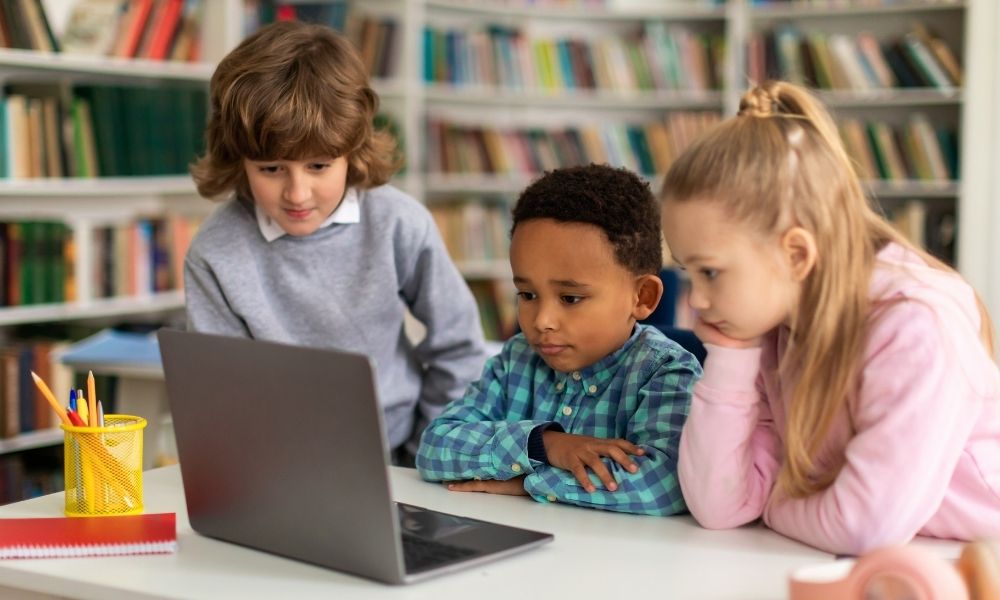
This is one of the most important steps, and many beginners skip it.
Before recording videos, create a family safety rulebook.
Here are rules I would include:
- No full real name unless the parent has carefully decided it is safe.
- No school name, uniform logo, street, house number, or exact location.
- No filming bedrooms, private rooms, documents, screens, or family information.
- No showing emotional breakdowns, punishments, private conversations, or embarrassing moments.
- No forcing the child to film when tired, upset, sick, or uninterested.
- No responding to strangers directly as the child.
- No private messages handled by the child.
- No brand deals without adult review and clear disclosure.
- No sharing schedules that reveal where the child will be.
- No comments or community interaction that the adult cannot moderate safely.
This may feel strict, but children deserve strict protection.
A good test is this:
Would the child be comfortable with this video still being online when they are 15, 18, or 25?
If the answer is no, do not post it.
Step 5: Understand “Made for Kids” Settings Before Uploading
YouTube requires creators to set whether their content is made for kids. You can set this at the channel level or video level inside YouTube Studio.
Do not ignore this step.
If your videos are directed to children, you need to mark them correctly. YouTube explains that content may be considered made for kids based on factors like subject matter, whether children are the intended audience, child actors or models, characters, toys, games, songs, stories, and other child-directed elements.
Read YouTube’s official page on made for kids audience settings and the FTC’s page on complying with COPPA.
I am not a lawyer, and this is not legal advice. But practically, if you are making content for children, you need to take these rules seriously.
This is another big difference from a normal YouTube channel. With kids’ content, you are not only thinking about growth. You are also thinking about children’s data, privacy, and platform rules.
Step 6: Do Not Build the Channel Around the Child’s Private Life
This is my honest opinion: the safest kids’ channel is usually not a child lifestyle channel.
Instead of making the child’s daily life the content, build the channel around a repeatable educational or creative format.
For example, instead of:
“Follow my child’s life every day.”
Try:
- Easy drawing lessons for kids
- Simple craft projects
- Science questions answered with cartoons
- Storytime with original characters
- Beginner language lessons
- Fun facts for curious kids
- Safe kitchen activities with adult supervision
This protects the child because the content is not built around personal exposure.
It also makes the channel easier to continue because you are not depending on private family moments to create videos.
Step 7: Create a 30-Video Starter Map
Just like with a normal YouTube channel, I would not start randomly.
Before uploading, plan your first 30 videos.
But for a kids’ channel, your 30-video plan should include age range, learning goal, safety notes, and production style.
Here is a practical format:
- Video title idea
- Age range
- Main learning or entertainment goal
- Materials needed
- Can this be filmed without showing the child’s face?
- Any safety warning needed?
- Thumbnail idea
- Parent approval status
Example for a craft channel:
- Easy Paper Butterfly Craft for Kids
- How to Draw a Happy Sun Step by Step
- Make a Paper Crown With 3 Materials
- Simple Color Mixing Activity for Kids
- DIY Paper Fish Craft for Beginners
- How to Make a Mini Storybook at Home
- Easy Rainy Day Craft With Paper Plates
- Draw 5 Cute Animals With Simple Shapes
- Safe Scissor Practice Craft for Kids
- Make a Card for Someone You Love
Example for an educational channel:
- Why Is the Sky Blue? Simple Answer for Kids
- How Plants Drink Water
- What Makes a Rainbow?
- Why Do We Brush Our Teeth?
- How Do Bees Help Flowers?
- What Happens When Ice Melts?
- Why Do We Need Sleep?
- How Do Birds Fly?
- What Is Recycling?
- Why Do We Wash Our Hands?
This is how you build a useful kids’ channel, not a random collection of cute uploads.
Step 8: Make the Format Repeatable
Kids like familiarity.
A repeatable format helps children know what to expect, and it also makes production easier for you.
For example, each video could follow this structure:
- Warm greeting
- Today’s question or activity
- Simple explanation
- Step-by-step demo
- Quick recap
- Gentle ending
For a craft channel:
- Show the finished craft
- List materials
- Step 1
- Step 2
- Step 3
- Show final result
- Encourage creativity
For a story channel:
- Introduce the character
- Start the problem
- Show the lesson or adventure
- Resolve the story
- Ask a gentle thinking question
This makes the channel feel safe and familiar.
It also reduces filming stress because you are not reinventing everything every time.
Step 9: Keep Videos Short and Clear
For kids’ content, attention span and clarity matter a lot.
This does not mean every video must be extremely short, but it should not drag.
For younger kids, simple and focused is usually better.
A good beginner structure might be:
- 3-5 minutes for simple learning videos
- 5-8 minutes for crafts or stories
- 8-12 minutes for older kids’ tutorials or projects
The exact length depends on the topic and age group, but do not add extra talking just to make the video longer.
Every minute should help the child understand, create, or enjoy something.
Step 10: Use Tools, But Keep the Content Human and Safe
AI and creator tools can make a kids’ channel easier to produce. But with kids’ content, tools should support safety and quality, not mass-produce low-value videos.
Useful tools include:
- Canva for thumbnails, simple animations, worksheets, and visual cards.
- CapCut for beginner-friendly editing, captions, and simple video cleanup.
- Descript for transcript-based editing and voiceover cleanup.
- DaVinci Resolve for more advanced editing.
- Audacity for free audio recording and cleanup.
- ChatGPT for brainstorming educational video outlines, parent checklists, and script drafts.
- Claude for longer story drafts, tone editing, and educational explanations.
- Pictory or InVideo for simple video creation experiments.
If you are exploring AI video tools more broadly, you may also like my guide on best AI video generator tools for faceless content creators.
But please be careful with AI-generated voices, characters, songs, and images for kids. Review everything manually. Make sure the content is age-appropriate, non-scary, non-misleading, and not accidentally strange or disturbing.
With kids’ content, human review is not optional.
Step 11: Create a Thumbnail System That Parents Trust
Kids’ thumbnails often become too loud: giant shocked faces, bright colors, arrows, toys everywhere, and exaggerated emotions.
But if you want to build a safe and helpful kids’ channel, think about parents too.
Parents often decide what young kids watch. Your thumbnail should look fun, but also trustworthy.
A good kids’ thumbnail can include:
- Clear subject
- Bright but not chaotic colors
- Readable text
- No fear-based clickbait
- No misleading images
- No exaggerated emotional manipulation
- Age-appropriate visuals
Examples:
- “Easy Paper Butterfly” with a clear craft image
- “Why Do Bees Help Flowers?” with a bee and flower illustration
- “Draw a Cute Cat” with the final drawing visible
- “Colors Mixing Fun” with simple color cups
For a normal YouTube channel, you may push curiosity more aggressively. For a kids’ channel, I would choose clarity and trust over hype.
Step 12: Write Scripts for Both Kids and Parents
This is a small detail, but it matters.
Kids may watch the video, but parents may approve the channel.
Your script should be child-friendly, but your overall channel should make parents feel safe.
For example, in a craft video, say:
“Ask a grown-up before using scissors.”
In a cooking activity, say:
“This part needs adult help.”
In a science activity, say:
“Only use safe materials and ask a parent before trying this.”
These small lines show responsibility.
They also make your content feel more trustworthy.
Step 13: Avoid Content That Creates Pressure or Comparison
This is something not everybody talks about.
Some kids’ channels accidentally create pressure:
- Perfect performance
- Perfect appearance
- Constant excitement
- Overreacting for the camera
- Comparing children
- Making kids responsible for views
- Filming private emotions
A child should not feel like they need to be entertaining all the time.
If your child is part of the channel, protect normal childhood. Do not turn every activity into content. Do not film everything. Do not make the child feel they disappointed you if a video does not perform well.
A channel can be fun, but childhood should stay bigger than the channel.
Step 14: Plan Filming Around the Child’s Energy
If a child appears in the video, filming should be short, calm, and flexible.
Do not film when the child is tired, hungry, upset, rushed, or overstimulated.
Practical filming tips:
- Film short sessions, not long production days.
- Prepare materials before the child joins.
- Use a simple shot list.
- Do not force retakes repeatedly.
- Let the child stop when needed.
- Keep snacks, water, and breaks available.
- Make the process feel like play, not work.
If filming becomes stressful, reduce the child’s on-camera role.
You can film hands, crafts, drawings, toys, animations, or voiceovers instead.
Step 15: Use a Parent Approval Checklist Before Publishing
Before uploading any video, use a checklist.
Here is a practical one:
- Does the video reveal any private information?
- Does it show school, location, documents, or personal details?
- Is the content age-appropriate?
- Is the title honest?
- Is the thumbnail safe and not misleading?
- Is the child comfortable with the video?
- Does the video need to be marked made for kids?
- Are music, images, and clips properly licensed?
- Are any safety warnings included?
- Would this video still feel okay years from now?
This checklist may save you from mistakes that are hard to undo later.
Step 16: Think Carefully About Comments and Community Features
Kids’ content has different feature limits on YouTube, and videos marked made for kids may have certain features disabled or limited.
But even outside automatic limitations, I would be very careful with comments and community interaction around children.
If comments are available in any context, they should be adult-monitored. Children should not read or respond to strangers without adult supervision.
For a kids’ channel, community building should not depend on direct child interaction with random viewers.
Use safe alternatives:
- Parent-managed email
- Website contact form
- Moderated social accounts
- No direct child responses
- No private messaging with viewers
For a normal channel, comments can be a growth tool. For a kids’ channel, safety matters more than engagement.
Step 17: Build a Content Library, Not Just Viral Videos
Kids’ channels can fall into the trap of chasing trends: viral toys, loud sounds, reaction videos, and exaggerated challenges.
But if your goal is to build something useful, think like a library.
Create videos that stay helpful:
- How to draw simple animals
- Beginner craft activities
- Simple science questions
- Storytime lessons
- Colors, shapes, numbers, reading basics
- Calm creativity videos
- Safe parent-child activities
This is similar to blogging. A helpful blog is not only built on trends. It is built on useful content that people can return to.
If you are connecting YouTube with a blog or website, you may find ideas in blog post to video workflows, especially if you want to turn educational articles into child-friendly video scripts.
Step 18: Monetization Should Come After Trust
Many people start kids’ channels because they hear kids’ content can get views. But views should not be the first motivation.
Kids’ content comes with ethical responsibility.
If you monetize later, be careful with:
- Affiliate links
- Sponsorships
- Product placements
- Toy promotions
- Merchandise
- Paid apps or games
- Food, health, or learning claims
Any promotion should be parent-approved, clearly disclosed, and suitable for the audience.
Also remember that kids may not understand advertising the way adults do. So do not use manipulative selling.
For normal YouTube channels, monetization can be part of the strategy early. For kids’ channels, trust and responsibility should come first.
Step 19: Build a Safe Brand Around the Channel
A kids’ channel brand should feel clear, warm, and safe.
Your brand kit can include:
- Simple channel name
- Parent-friendly description
- Age range
- Content promise
- Color palette
- Character or mascot if relevant
- Safe thumbnail style
- Intro and outro format
- Music style
- Words and topics you avoid
Example channel description:
Welcome to [Channel Name], a parent-led creative learning channel for kids ages 6-9. We share simple crafts, drawing ideas, and gentle learning activities that children can enjoy with adult guidance.
This tells parents what the channel is and who it is for.
Step 20: Create a Simple Production Workflow
A kids’ channel can become overwhelming if every video is different.
Use a repeatable workflow:
- Choose the video topic.
- Check age suitability.
- Write a short outline.
- Prepare materials or visuals.
- Record in a short session.
- Edit simply.
- Add captions or visual labels if helpful.
- Create thumbnail.
- Run parent approval checklist.
- Upload with correct audience setting.
Keep the editing style simple at first.
You do not need heavy effects. Clear audio, good lighting, safe visuals, and a useful idea matter more.
Useful Tools for Starting a YouTube Channel for Kids
Planning Tools
- Notion for video planning, safety checklists, scripts, and content calendars.
- Trello for simple video workflow boards.
- Google Docs for scripts, parent approvals, and content notes.
Video Creation Tools
- CapCut for easy editing and captions.
- Canva for thumbnails, worksheets, simple animations, and visuals.
- Descript for voiceover cleanup and transcript editing.
- Audacity for free audio recording and editing.
YouTube and Safety Resources
- YouTube Studio for uploads, analytics, settings, and audience controls.
- YouTube Help: Made for Kids Settings for understanding audience requirements.
- YouTube Kids for understanding the separate kids viewing environment.
- YouTube Family for parent and supervised experience information.
- FTC COPPA FAQs for child privacy guidance.
AI Tools for Ideas and Scripts
- ChatGPT for brainstorming age-appropriate topics, outlines, and parent checklists.
- Claude for gentle story drafts and longer educational explanations.
- Gemini for topic research and planning support.
Use AI carefully. Always review scripts manually for accuracy, tone, safety, and age suitability.
Common Mistakes to Avoid
1. Treating a Kids’ Channel Like a Normal Channel
This is the biggest mistake.
A kids’ channel needs stronger privacy rules, safer content decisions, and adult control. You cannot only think about growth.
2. Showing Too Much Personal Information
Do not reveal school names, locations, family schedules, uniforms, home details, or private routines.
Privacy should be built into the channel from the beginning.
3. Making the Child Perform Under Pressure
Views, subscribers, and upload schedules should never become the child’s emotional responsibility.
If filming is no longer fun or safe, stop or change the format.
4. Using Misleading Thumbnails
A kids’ channel should not rely on scary, exaggerated, or manipulative clickbait.
Build trust with clear and honest packaging.
5. Ignoring Copyright and Licensing
Do not use random songs, cartoons, clips, images, or stories without rights.
This matters for any channel, but especially for kids’ content where music and characters are common.
6. Publishing Without a Parent Review Checklist
Always review before publishing.
Check safety, privacy, age suitability, audience settings, and whether the video respects the child.
7. Starting Without a Repeatable Format
Random videos are hard to sustain.
Create a simple format kids recognize, and parents trust.
Best For / Not Best For
A YouTube Channel for Kids Is Best For:
- Parents or guardians willing to manage the channel responsibly
- Educational creators who want to make child-friendly learning content
- Families who can set strong privacy boundaries
- Creators who prefer safe, repeatable formats like crafts, stories, or learning videos
- People who value trust and safety more than fast views
- Faceless creators making animation, songs, stories, or educational visuals for kids
A YouTube Channel for Kids Is Not Best For:
- People who want quick money from children’s attention
- Parents who may pressure children to perform
- Creators who do not want to learn platform rules
- Anyone who wants to share private family life without boundaries
- People who depend on shock, fear, or manipulation for clicks
- Creators who cannot review content carefully before publishing
My Honest Take
My honest take is that starting a YouTube channel for kids can be beautiful if it is done with the right intention.
It can help children learn, create, laugh, draw, explore, listen to stories, understand simple ideas, and enjoy safe content. It can also become a creative family project or a thoughtful educational brand.
But it should never be treated casually.
A kids’ channel is not only a content project. It is a responsibility.
If a child appears in the videos, their privacy and emotional safety matter more than performance. If the content is made for children, the information should be age-appropriate, calm, safe, and honest. If the channel grows, the adult responsibility grows with it.
I would personally start with a low-exposure format: crafts, drawing, stories, educational animations, hands-only videos, or parent-led tutorials. I would avoid building the channel around a child’s private life. I would create a safety rulebook before filming anything. I would make the format repeatable and gentle. I would mark content correctly and keep learning YouTube’s rules.
And I would remind myself often: the goal is not just to start a channel. The goal is to create something that helps children without harming childhood.
Final Thoughts: Start With Safety, Then Strategy
If you want to know how to start YouTube channel for kids, the practical steps are not just “create an account and upload.”
Start with adult responsibility. Choose the type of channel. Pick a narrow age group. Create privacy rules. Understand made-for-kids settings. Plan 30 safe video ideas. Build a repeatable format. Use tools carefully. Review every upload. Protect the child from pressure. Think about trust before monetization.
That is the real strategy.
A normal YouTube channel starts with audience and content.
A kids’ YouTube channel starts with safety and responsibility.
Then comes creativity.
Then comes growth.
And if you build it that way, your channel has a much better chance of becoming something parents trust, children enjoy, and you can feel proud of later.
FAQs About How to Start YouTube Channel for Kids
How do I start a YouTube channel for kids?
Start by deciding whether the channel is made for kids, parent-led, family-based, educational, faceless, or child-presenting. Then create privacy rules, understand YouTube’s made-for-kids settings, plan age-appropriate video ideas, build a repeatable format, and review every video carefully before publishing.
Is starting a YouTube channel for kids different from a normal channel?
Yes. A normal YouTube channel focuses mainly on niche, content, growth, and monetization. A kids’ channel must also focus on child safety, privacy, legal responsibilities, age-appropriate content, adult control, and emotional protection.
Should my child appear on the channel?
That is a serious family decision. From a privacy perspective, it may be safer to start with faceless formats, hands-only crafts, animations, stories, or parent-led educational videos. If a child appears, protect their identity, private life, location, and emotional comfort.
What are good YouTube channel ideas for kids?
Good ideas include crafts, drawing tutorials, simple science, storytelling, educational animation, language learning, safe activities, bedtime stories, beginner coding for older kids, and creative projects. Choose a specific age group before planning videos.
Do kids’ videos need to be marked made for kids?
If your content is directed to children, you need to set the correct audience setting on YouTube. Review YouTube’s official made-for-kids guidance and COPPA-related information before uploading.
Can AI help create a kids’ YouTube channel?
Yes, AI can help brainstorm ideas, write simple scripts, create outlines, design worksheets, and plan video formats. But every AI-generated idea or script should be reviewed by an adult for accuracy, safety, tone, and age suitability.
What tools are useful for a kids’ YouTube channel?
Useful tools include Canva for thumbnails and visuals, CapCut for simple editing, Audacity for audio, Descript for transcript editing, YouTube Studio for uploads and analytics, and AI tools like ChatGPT or Claude for brainstorming. Use tools to support quality, not to mass-produce low-value content.